

How-to
Managing Help Notes
Adding information specific to your institution below help topics, previewing it and removing it.
The help pages are the same in every installation of JournTech. You can add information that is specific to your institution below a topic as a note, for example an internal approval step, a submission calendar or the name of the unit that answers questions. Readers see the note at the end of the topic, under the name of your institution. The note appears both on the help page and in the help side panel.
Users with the "Edit pages, menus, banners, news, events and documents" permission write the notes.
Adding a note
- Open the Institutional content → Help notes screen.
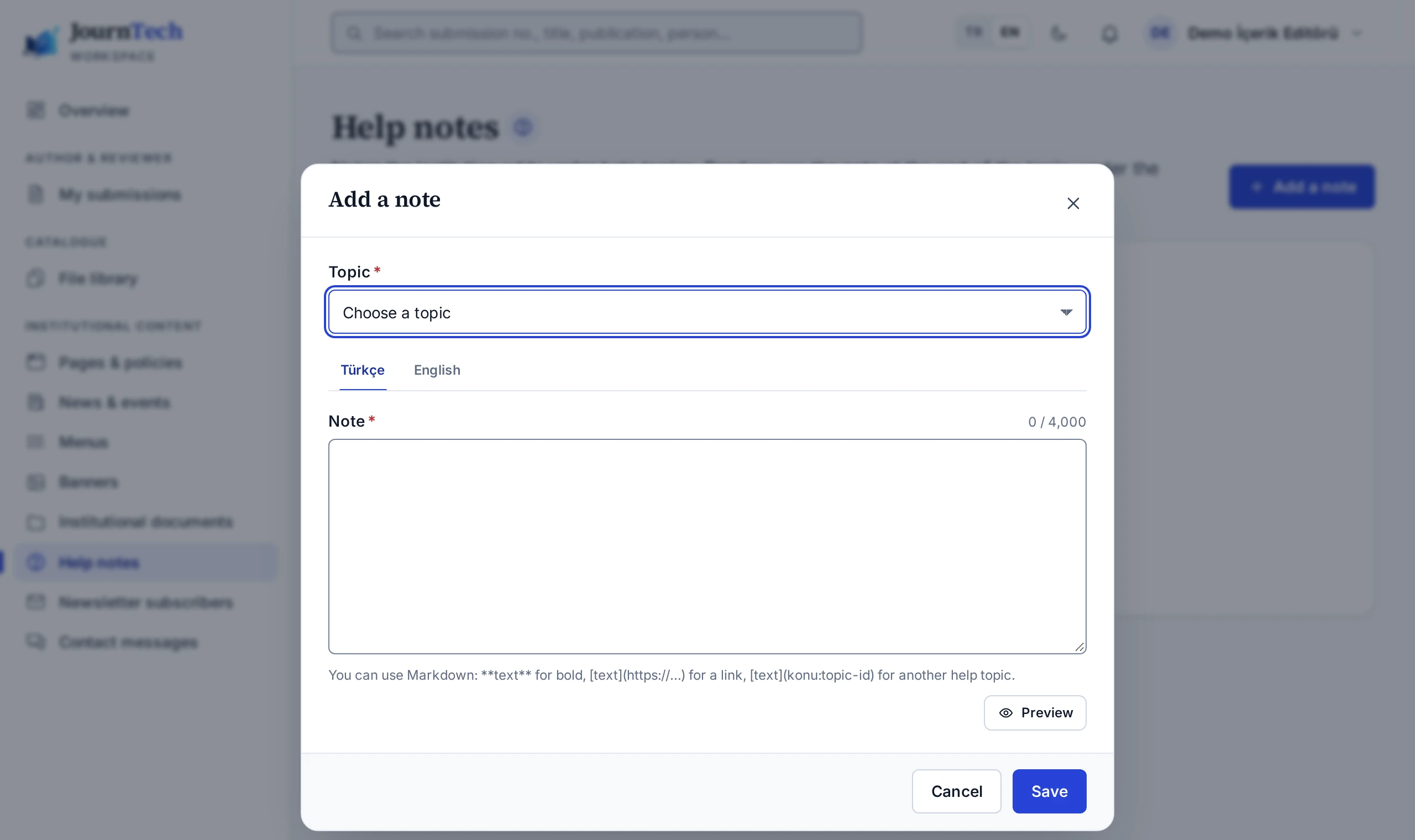
- Press Add a note and select the topic the note is for. If the topic you select already has a note, its text comes into the dialog and you edit it.
- Write the Turkish text. For the English pages, you can also write on the English tab. If there is no English note, the English pages show the Turkish note.
- Check with Preview how the note will look on the page, then press Save.
The Add an institution note to this topic link in the side panel opens the same dialog with that topic selected. When you notice missing information while you read a topic, adding the note from there is quicker.
Text format
Notes are written in Markdown. For bold text use **text**, and for a bullet point use - at the start of a line. A
link to a web page has the form [text](https://…). For a link to another help topic, write [text](konu:topic-id).
The topic ID is the last part of the help page's address. For this page it is yardim-notlari.
HTML is not added to a note. If you write HTML, it appears as plain text. If a link does not open or a shortcode is not recognised, the preview shows it and the note is not saved.
Removing a note
Use Delete the note in the menu on the note's row in the list. The note disappears from the help page and from the side panel at once. Adding, changing and deleting a note are written to the audit log.
If a topic is removed or renamed in a version upgrade, the note stays in the list with the Topic removed marker and does not appear on any page. Move the text to another topic and delete the old note.