

Screens and settings
Pages & Policies
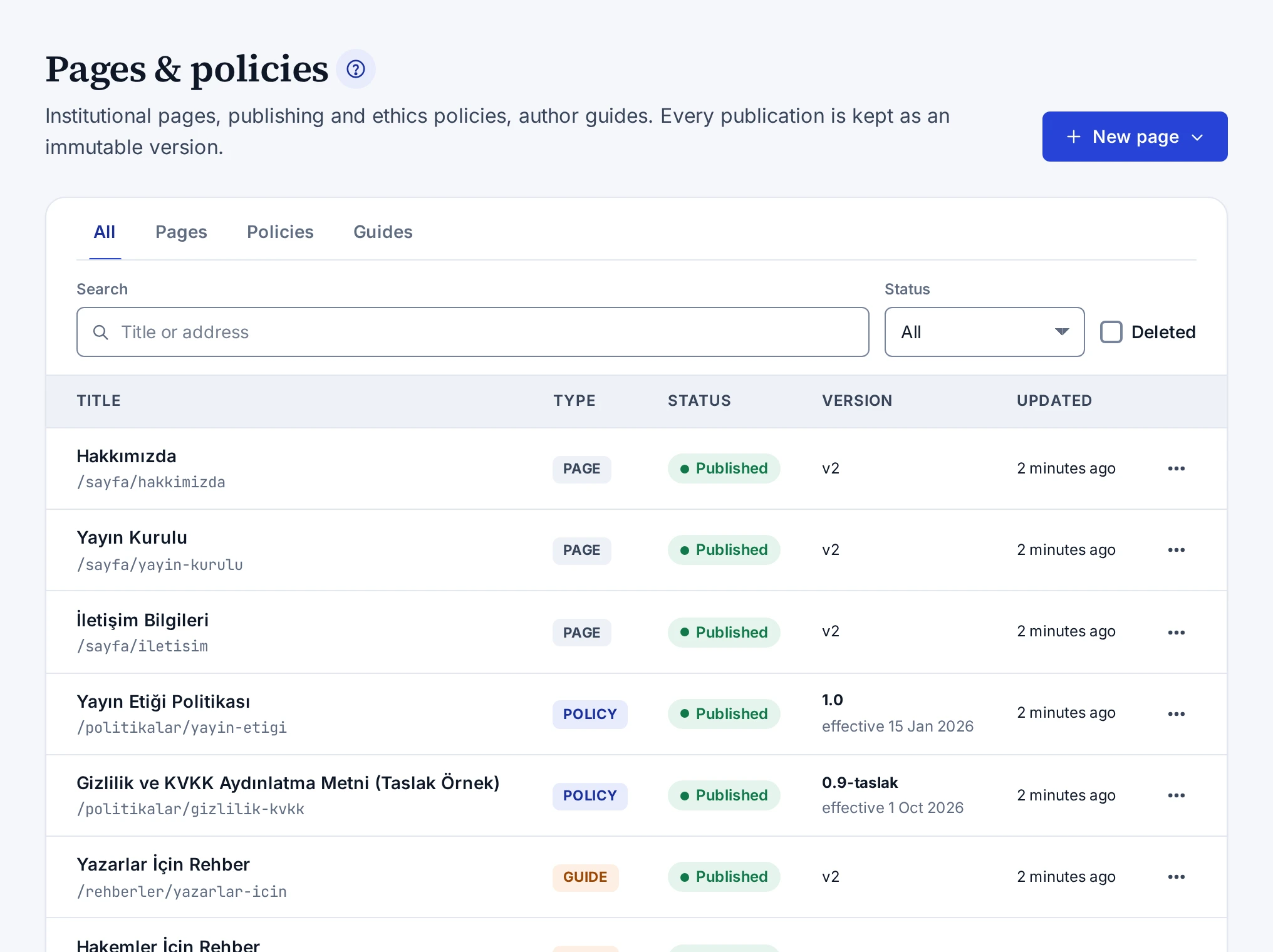
The tabs, filters, columns and row actions of the screen that lists institutional pages, versioned policies and guides.
The Institutional content → Pages & policies screen lists institutional pages, policies and guides. Content such as About us, the boards, the ethics policy and the author guide is created here.
On the public site, pages are published at /sayfa/…, policies at /politikalar/… and guides at /rehberler/…. On
the English site, the addresses are /en/page/…, /en/policies/… and /en/guides/….
Tabs and filters
The All, Pages, Policies and Guides tabs above the list group the content by type. Below the tabs are these filters.
- The Search box searches titles and addresses.
- The Status list filters content by the statuses Draft, In review, Published, Unpublished and Archived.
- The Deleted box shows deleted content.
The filters stay in the address bar. If you share the link, the same list opens.
Columns
| Column | Shows |
|---|---|
| Title | The title and the public address. The missing-translation, unpublished-changes and scheduled-publication badges also appear here. |
| Type | Page, policy or guide |
| Status | The content's status |
| Version | For a policy the version label and effective date, for other types the number of the live version |
| Updated | The time of the last change |
The Unpublished changes badge shows that a published page has a saved change that is not published yet.
Row actions
The Actions menu at the end of the row holds Edit, View on the site for published content, and Delete. Published content cannot be deleted. Unpublish it first. Deleting needs a reason of at least 5 characters. You restore deleted content with Restore in the Deleted view.
New content
The New page menu opens the editor for an Institutional page, a Policy (versioned) or a Guide. The steps are in Creating a Page, and the parts of the editor in Page Editing Screen.