

Screens and settings
Site Settings Tabs
The nine tabs of the Site settings screen, the cards on each tab, how saving works and the integration cards.
The Administration → Site settings screen brings the site's identity, the workflow rules, the integrations and the feature flags together on nine tabs. Secret keys and passwords are stored encrypted and are not shown on any screen.
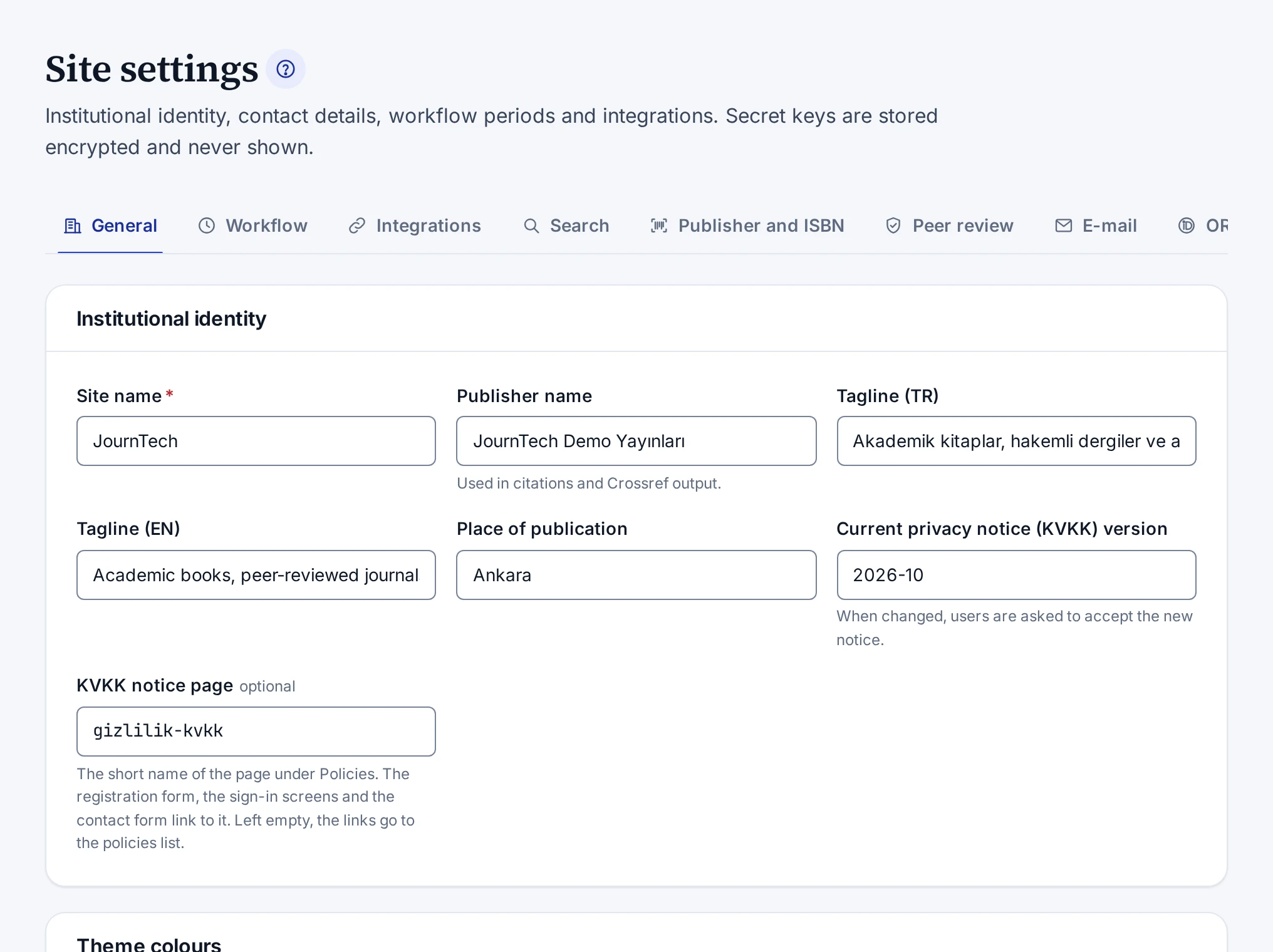
Tabs
| Tab | What it contains | Details |
|---|---|---|
| General | Institutional identity, theme colours and logo, search engines and sharing, contact details | Setting the Institutional Identity and Logo, Setting Search Engine and Sharing Defaults |
| Workflow | Review, revision and reminder periods, the retention period for deletions under KVKK (Türkiye's Personal Data Protection Law), operations alerts, catalogue and institutional content rules | Workflow Settings |
| Integrations | OAI-PMH, Crossref and DOI, ROR, automatic DOI registration and institutional sign-in | Configuring Automatic DOI Registration, Configuring Institutional Sign-In |
| Search | Suggestions while typing, synonym expansion and synonym groups | Configuring Search |
| Publisher and ISBN | The publisher certificate, the officers for the Ministry of Culture and Tourism, printers, legal deposit and ISBN reminders | Entering the Publisher Settings |
| Peer review | The peer review processes of the books | Defining Peer Review Processes |
| E-mail sending and the test e-mail | Configuring Outgoing E-mail | |
| ORCID | Sign-in with ORCID | Configuring ORCID Sign-In |
| Features | Feature flags | Feature Flags |
The open tab stays in the address bar. If you share the link, the screen opens on the same tab. While the screen is open, a link to another of its tabs opens that tab too, for example an ISBN reminder in the notifications.
Saving changes
The General, Workflow and Search tabs and the first three cards of the Integrations tab are one form. The Save button at the bottom of these tabs saves the changes you made on all of them together. If nothing changed, the screen shows the Nothing changed message.
The Automatic DOI registration (Crossref) and Institutional sign-in (OIDC) cards have their own Save button. The Publisher and ISBN, Peer review, E-mail and ORCID tabs are saved separately too. The switches on the Features tab take effect at once, without saving. If you cancel a switch that asks before turning off, or the change cannot be saved, the switch goes back to where it was.
Moving to another tab does not discard the unsaved changes of any tab. If you try to leave the screen with unsaved changes, the panel asks first.
If a field is invalid, nothing is saved, and the message at the bottom right lists the fields to correct. Every saved change is written to the audit log with its old and new value. Changes take effect on the site within 15 seconds.
Cards on the Integrations tab
- The OAI-PMH card has the Repository name and Administrator e-mail fields of the OAI-PMH repository. External indexes see these details in the OAI-PMH response. If the repository name is empty, the site name is used, and if the administrator e-mail is empty, the contact e-mail is used.
- The Crossref / DOI card holds the DOI prefix and the publisher details sent to Crossref.
- The ROR search in the institution form switch on the ROR (organisation identifiers) card is off by default. Once it is turned on and saved, the Search ROR button appears in the form of people who add and edit institutions. The server queries ROR's open interface and keeps the results in memory for six hours. The server must be able to reach api.ror.org. How to use the button is described in Searching ROR for an Institution.
- The Automatic DOI registration (Crossref) card is explained in Configuring Automatic DOI Registration.
- The Institutional sign-in (OIDC) card is explained in Configuring Institutional Sign-In.