

Screens and settings
Editor Submission Screen
The header, Next step card, tabs, cards and rules of the screen where an editor opens a submission.
This screen opens when you open a submission from the queue. Screening, reviewer invitations, the decision and the correspondence all run from this screen. The buttons on the screen depend on the status of the submission and on your permissions.
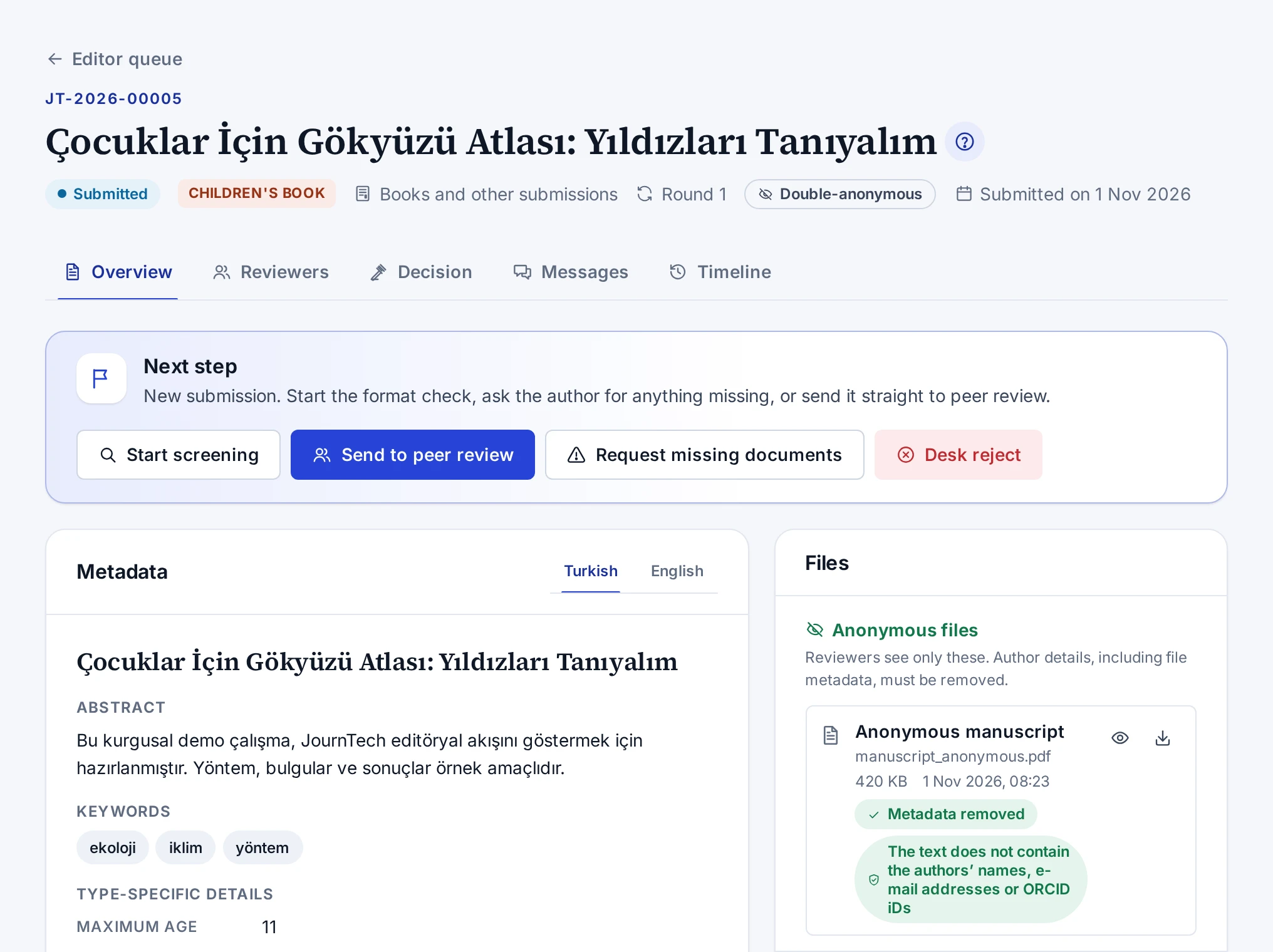
Header
The header shows the submission number and title. Below them are the status of the submission, the publication type, the journal, the review round and the submission date. The peer review type also appears here as Double-anonymous, Single-anonymous or Open review. For submissions not tied to a journal, Books and other submissions appears in place of the journal.
| Button | When it appears |
|---|---|
| Referee dossier (PDF) | If you have the permission to decide. It does not appear while the status of the submission is Submitted or Screening. Details are in Downloading the Referee Dossier |
| Open the production job | If a production job has been opened for the submission and you may see production jobs |
| Catalogue record | If the submission has a catalogue record and you may see draft records |
If you reviewed this submission as a reviewer, a separation-of-duties warning appears under the header. In that case you cannot make the final decision.
Tabs
| Tab | Contents |
|---|---|
| Overview | The Next step card, metadata, authors, declarations, files, editor assignments and the submitter |
| Reviewers | Reviewer invitations by round, deadlines, reviews and the reviewer rules note. The number on the tab is the count of open invitations in the current round |
| Decision | The reviews of the round, the final decision or decision recommendation form, and the history of decisions and recommendations. On a submission awaiting a decision the tab shows a dot |
| Messages | Messages with the author and the internal notes of the editors |
| Timeline | Every event of the submission. Events the author does not see carry the Editors only label |
The open tab stays in the address bar. If you share the link, the same tab opens.
Next step card
The card says what you need to do in the current status of the submission and shows the buttons for the actions available in that status.
| Status | Buttons |
|---|---|
| Submitted | Start screening, Send to peer review, Request missing documents, Desk reject |
| Screening | Send to peer review, Request missing documents, Desk reject |
| Documents missing | Desk reject |
| Under review | Invite reviewer, Final decision or Decision recommendation |
| Revision submitted | Send to peer review, Reviewers, Final decision or Decision recommendation |
Only editors with the permission to decide see the Desk reject button. For submissions awaiting a revision and for accepted, rejected and withdrawn submissions, the card only explains the status.
Overview cards
| Card | Contents |
|---|---|
| Metadata | Title, subtitle, abstract, keywords and type-specific details. Language tabs if the submission is in two languages |
| Authors | The authors in order with their institutions, e-mail addresses and ORCID iDs, the corresponding author and the contributor roles |
| Declarations | The declarations the author confirmed, with their versions, answers and dates |
| Files | Anonymous files, Identified files and the Upload an editor file section |
| Editor assignments | The assigned editors, their roles and the person who assigned them |
| Submitted by | The name, e-mail address and institution of the account that sent the submission |
Screen rules
- The screen opens only submissions within your scope that have been submitted. Drafts do not open here.
- A submission you are an author of does not open.
- If the status of the submission changed after you opened the screen, an action may be refused. Reload the page to see the current status.
- The decision type, rationale and letter you entered in the decision form stay when you move to another tab. The message you are writing stays too. If you try to leave the screen before you issue the decision or send the message, the panel asks first.