

Screens and settings
Submission Wizard
The parts of the wizard screen where new submissions and drafts are prepared step by step, how it saves and when it opens.
The submission wizard is the screen where you prepare a new submission and your unsent drafts step by step. When you start a new submission, the header says New submission. When you open a draft, the header shows the draft's title. The steps are described in detail in Making a Submission.
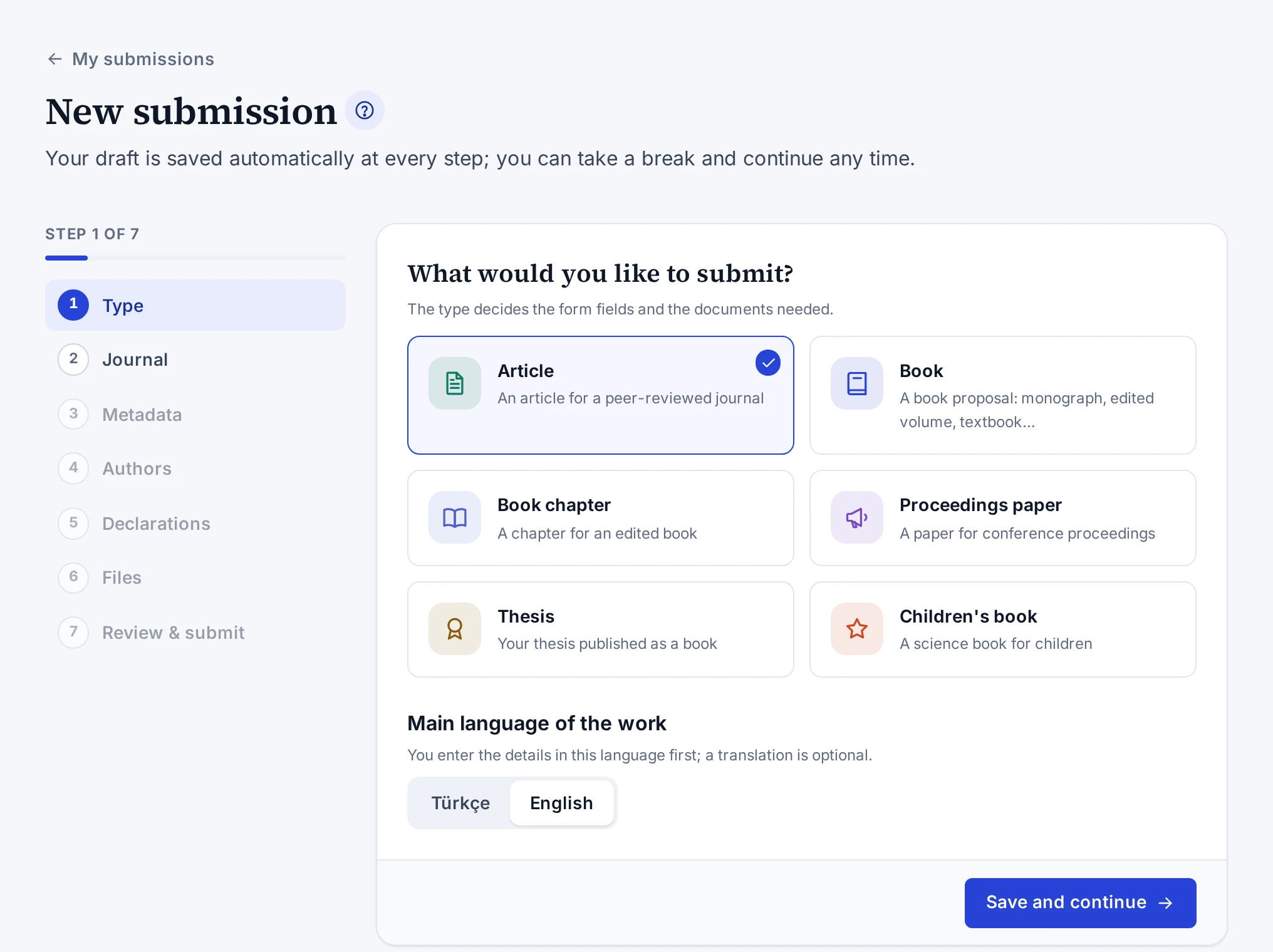
Parts of the screen
| Part | What it shows |
|---|---|
| Step list | The steps and the state of each step. A step with missing details is marked, and pressing a step opens it. |
| Save status | Next to the header, the time the draft was last saved, or unsaved changes |
| Bottom bar | The Previous step, Save and exit and Save and continue buttons |
The steps are, in order, Type, Journal, Metadata, Authors, Declarations, Files and Review & submit. Types other than articles have no Journal step.
Saving
Once the draft has been created, your changes are saved automatically. The type, the journal and the main language are saved when you leave their steps. Save and continue, Previous step, the step list and Save and exit work the same way here. If you chose a type that needs a journal, the panel opens the journal step first.
When you move from the wizard to another screen, the panel saves the draft first. If a change could not be saved, it asks before leaving. The browser also warns when you close the tab.
If saving fails because of the connection or the server, "Could not save — will retry" appears next to the header. The panel sends the changes again after a few seconds and waits a little longer before each new attempt. If the server does not accept a field, the reason appears next to the header and under the step. When you correct the field, the draft is saved again.
If you press Save and exit while there are changes that could not be saved, the panel asks before leaving. Stay on the page keeps you in the wizard. Discard changes leaves the unsaved changes behind and opens the submission's page.
When the wizard opens
| Situation | What you do in the wizard |
|---|---|
| New submission | Choose the type and the journal, then all the steps |
| Draft | All the steps and the submission |
| Documents missing | Corrections and Send the corrections (Supplying Missing Documents) |
| Revision requested | The metadata only. The revision is sent from the submission's page (Submitting a Revision). |
If you open the wizard for a submission that has already been sent, the message "This submission was sent and can no longer be edited." appears. The Go to the submission page button opens the submission's page.
If your e-mail address is not verified, the wizard does not open. While new submissions are closed, you cannot start a new submission, but you can complete and send your existing drafts.