

Screens and settings
Issue Page
The table of contents, the issue details card, the consistency check, the publishing, ODİS and Crossref buttons and the deletion of a journal issue.
The issue page shows the articles and the details of a journal issue together. You open the page from the row of the issue on the Issues tab of the journal. The header shows the volume and issue number, and next to them the status, year and title of the issue and the special issue mark.
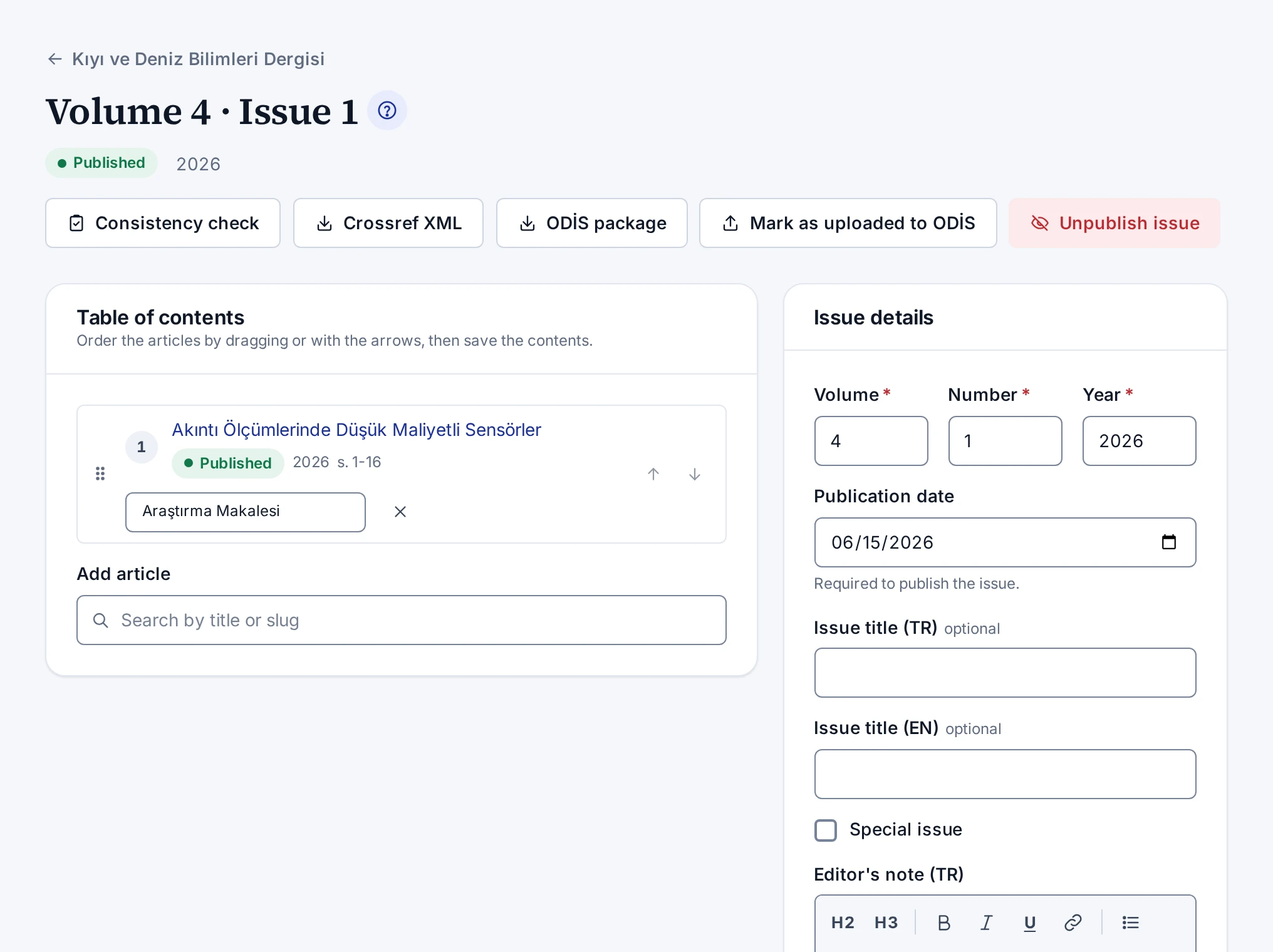
Buttons at the top
| Button | What it does |
|---|---|
| Consistency check | Checks the issue and its articles and shows the result at the top of the page |
| Crossref XML | Downloads the Crossref file of the public articles of the issue that have a DOI |
| ODİS package | Downloads the ODİS package of the published issue |
| Mark as uploaded to ODİS | Marks, with the date, that the issue has been uploaded to ODİS |
| Publish issue | Publishes the draft issue |
| Unpublish issue | Unpublishes the published issue, with a reason |
ODİS is the journal system of TR Dizin, the national citation index of Türkiye. The ODİS buttons appear only on a published issue and are described in Downloading the ODİS Package.
Table of contents
The Table of contents card lists the articles of the issue in order. Each row shows the title, status, year and pages of the article and a field for the section heading. After a check, the row of an article with problems shows its gaps and TR Dizin warnings.
- You put the rows in order by dragging them. When the order or a section heading changes, the Save contents button appears. The button saves the order and the section headings together.
- The Add article field at the bottom of the card adds an article to the issue.
- The cross button in a row removes the article from the issue.
The steps are in Adding Articles to an Issue.
Issue details
The Issue details card has the Volume, Number, Year, Publication date, Turkish and English Issue title, Special issue and Turkish and English Editor's note fields. The editor's note is formatted text: the toolbar adds headings, bold or italic text, lists and links. The note appears on the issue's public page under "From the editor". The Save button of the card is active only when there is a change. The Delete issue button at the bottom of the card opens the dialog for deleting the issue.
Screen rules
- Only people who may manage the journal open and change the page.
- Publishing the articles together with the issue requires the permission to publish in the catalogue.
- An issue with published articles cannot be unpublished.
- Changes to the order you set by dragging, to the section headings and to the issue details stay until you save them. Adding or removing an article, publishing the issue or saving the other card does not discard them. If you try to leave the page with unsaved changes, the panel asks first.
- Deleting the issue is described in Deleting a Journal Issue.
The publishing steps are in Publishing an Issue.