

How-to
Setting Up the Thesis Harvest
Entering the OAI-PMH address of the institution's open repository, checking the source, choosing the record format and the sets, switching the harvest on and starting the first full harvest.
You set up the thesis harvest in the Source settings card of the Catalogue → Thesis harvest screen. People with the Manage site settings and feature flags permission change the source settings. People with the Bulk import (CSV, XLSX, JSON) permission see the screen, start the harvest and read its results.
Before you start
- Ask the repository's administrator for its OAI-PMH address. In DSpace repositories this address usually ends in
/server/oai/request. - Ask the repository's administrator which sets hold the theses. In DSpace repositories every graduate school's community and every department's collection is a set of its own.
Checking the source
- Open the Catalogue → Thesis harvest screen.
- Type the repository's OAI-PMH address in OAI-PMH address.
- Press Check the source.
The check reads the repository's identity, the record formats it offers and its sets. In a repository with many sets this takes about a minute. When it is done, The archive's details shows the repository's name, its contact address, how it reports deleted records and the formats it offers. If the check fails, see Check the source gives an error.
Choosing the settings
- Leave the recommended format selected in Metadata format. JournTech recommends the format, among those the repository offers, that gives the most detail about a thesis. In DSpace repositories this is xoai.
- Tick the sets that hold the theses in Sets. The Choose the thesis collections button chooses every set whose name shows it is a thesis collection.
- Choose in Full text how readers reach the full texts.
- Leave the recommended The archive's record option selected in Original page.
- Type the name of the university that awards the degrees in Institution name. If the university is in the institution tree, also choose it in Its entry in the institution tree.
- Switch Harvest on on.
- Press Save.
The harvest can only be switched on with the address that was checked. If you change the address, check the source again before you save.
Sets
A thesis that is in several sets is in the catalogue once. One installation imports theses from at most 300 sets.
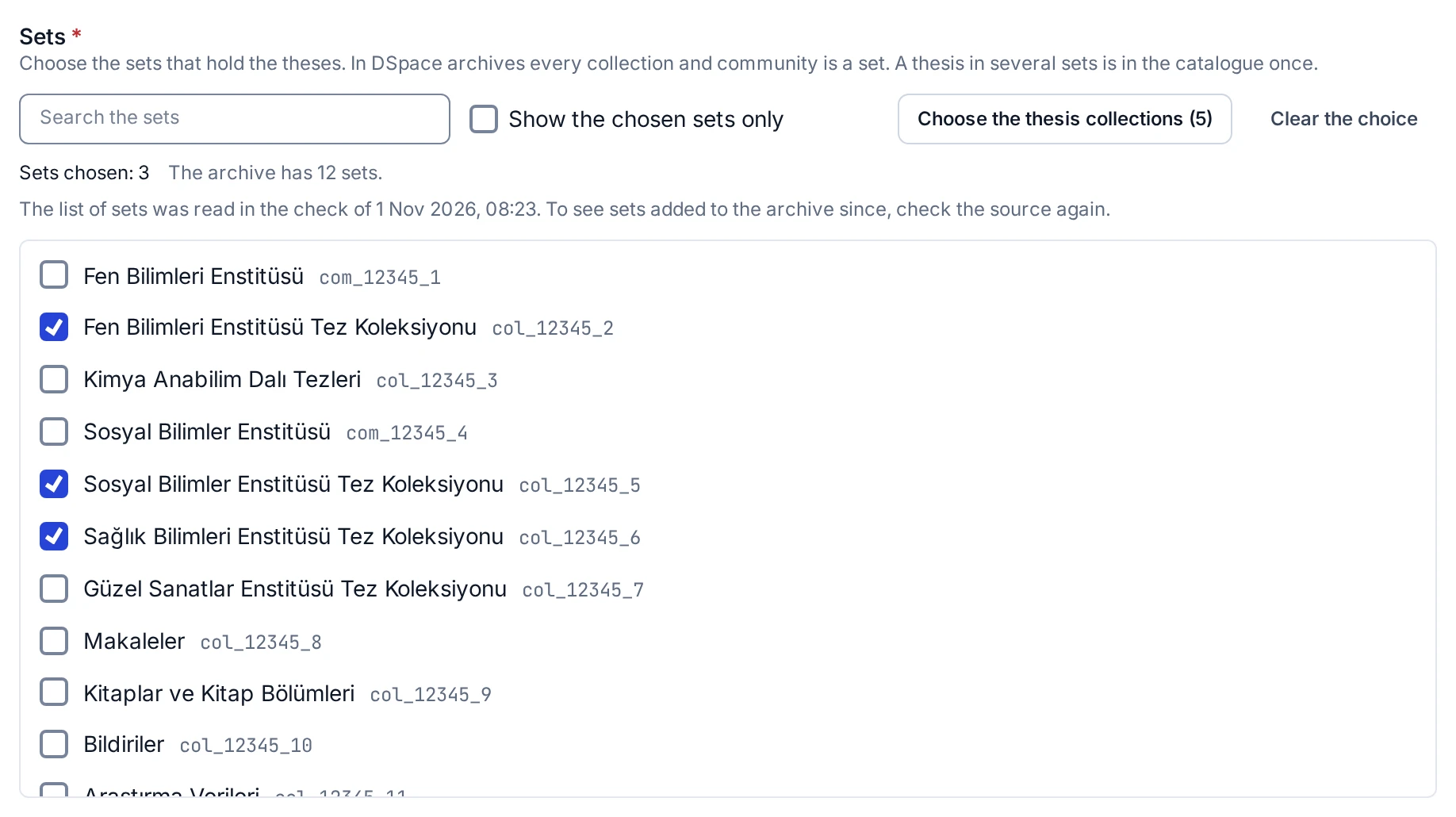
The list of sets a check reads is kept. When you open the screen again, the list shows with the date of the check. You do not need to check the source again to add a set. A set added to the repository after the last check is not in the list. To add it, check the source again. The new check replaces the kept list.
If a chosen set is not in the kept list, not in the archive shows next to it. The list shows at most 2,000 sets. For a repository with more sets, the note under the list gives the number of sets in the repository. If the screen shows only the chosen sets, no list has been kept yet. Check the source once in that case.
Full text
With Link to the archive's file selected, the page of an open-access thesis opens the full text from the file in the repository.
With Copy the file here after a malware scan selected, open-access PDF files are copied here and scanned for viruses like every upload. Copying works only with xoai, the format that lists the files, and files larger than 150 MB are not copied. To keep the load on the repository low, JournTech waits ten seconds before each file. The first full harvest therefore takes much longer.
The files of embargoed and restricted theses are never copied or linked, whichever option you choose.
Original page
With The archive's record selected, search engines treat the thesis's record in the repository as its original page. The page on this site carries no citation tags, and the thesis stays out of the sitemap and of this site's OAI-PMH output. This way the same thesis does not appear twice in search engines. The page on this site makes the page on this site the original.
The first full harvest
After you save the settings, press Full harvest in the Status card. A full harvest reads every record in the chosen sets. If you press the button outside the night hours, the harvest starts by itself when they come. The card shows the night hours.
The full harvest runs in the background and you can leave the screen. While the screen is open, the counts refresh by themselves. JournTech sends its requests to the repository one at a time with pauses, so a full harvest of a repository with thousands of theses can take hours. After the first full harvest, new and changed theses are synced every night by themselves. The details are in Full Harvest and Sync.
Switching the harvest off
If you switch Harvest on off and press Save, the scheduled runs stop. The theses imported so far stay in the catalogue and on the public site.