

JournTech
Section Editor Guide
This guide was made from the help pages on 9 November 2026. The help centre has the latest version.
Help Press Ctrl+P to print it or save it as a PDF.
Role
Section Editor
Screens submissions, invites reviewers and records decision recommendations. Granted for a single journal or for the whole platform.
The section editor screens submissions, invites reviewers and records the decision recommendation. The Editor-in-chief issues the final decision.
In the panel you see the Editorial → Editor queue screen and the Production jobs. You can only view production jobs. If the role was granted for one journal, you see only that journal's submissions. If it was granted for the whole platform, you see all journals and the submissions that do not belong to a journal.
Start by getting to know the Editor Queue screen.
Permissions of this role
- See the submissions in scope (editor queue)
- Screen submissions, request missing documents, send to review
- Invite and manage reviewers
- Record a decision recommendation
- Message authors about their submission
- See production jobs
- Start a submission for an author's account (the author submits it)
Screens and settings
Panel Search
Searching submissions, publications, people, users, pages and help topics at once with the search box in the panel's top bar.
The search box in the top bar searches many parts of the panel at once. When you type in the box and press Enter, the
Search screen opens and the results are grouped into sections. Turkish characters and upper and
lower case make no difference. For example, typing ışık also finds the title Işık Kirliliği.
The box appears for all roles other than Registered researcher and Reviewer. Which sections you see depends on your permissions.
Result sections
| Section | Permission needed to see it | Screen that opens all results |
|---|---|---|
| Submissions | See the submissions in scope (editor queue) | Editor queue |
| Publications | See unpublished catalogue records | Publications |
| People | Create and edit persons and institutions | People & institutions |
| Users | See user accounts | Users & roles |
| Pages | Edit pages, menus, banners, news, events and documents | Pages & policies |
| Help | No permission needed | The help centre's search |
Each section shows at most six results. If there are more, the See all link at the top of the section opens the search in that screen's list. Submission and publication results also show the type and the status.
When you press a help result, the topic opens in the help panel next to the screen, and you do not leave the screen you are working on.
When there are no results
Check the spelling or try a shorter phrase. If you are searching by submission number, type the whole number, for example JT-2026-00012.
Concept
Peer Review Types
What authors and reviewers see of each other in double-anonymous, single-anonymous and open review, and when the type is set.
The peer review type decides whether the author and the reviewer see each other's identity. The type is chosen in the Peer review field of the journal profile. Submissions not tied to a journal are reviewed double-anonymously.
| Type | What the reviewer sees | What the author sees |
|---|---|---|
| Double-anonymous | The identity of the authors is not shown | The identity of the reviewer is not shown |
| Single-anonymous | The authors and their institutions | The identity of the reviewer is not shown |
| Open review | The authors and their institutions | The name of the reviewer of a shared review |
Rules for every type
- Reviewers see only the anonymous files. The title page, the cover letter and the declaration documents are open only to editors.
- Editors always see the authors and the reviewers.
- The author sees only the comments-to-the-author section and the attachment of the reviews the editor shares.
- Confidential comments to the editor are never shown to the author.
- The invitation e-mail contains only the submission number and the journal name.
When the type is set
The peer review type of each submission is recorded when the author first submits it. If the journal changes the type later, the change applies only to new submissions. The editor sees the type of the submission in the header of the submission screen. The reviewer sees it in the note at the top of the invitation page.
The steps for changing the type are in Editing the Journal Profile.
Concept
Reviewer Deadlines and Reminders
The response and review periods of reviewer invitations, when reminders go out and how unanswered invitations close.
Each invitation has two deadlines. The reviewer responds to the invitation by the response deadline. If they accept, they submit the review by the review deadline. The exact dates are in the invitation and on the Deadlines card of the invitation page.
Default periods
If the editor does not set periods in the invitation, the periods from the site settings apply. By default these are 7 days for the response and 21 days for the review. A system administrator changes them on the Workflow tab of the Administration → Site settings screen.
In an invitation, the response period can be between 1 and 60 days and the review period between 1 and 180 days. Both periods count from the moment the invitation is sent. The review deadline cannot be earlier than the response deadline.
Reminders
- A reviewer who has not responded to the invitation yet is reminded once before the response deadline.
- For an accepted invitation, a reminder goes out before the review deadline.
- If the review is late, the reminders continue at the same interval. At most five review reminders are sent for one invitation.
- A site setting decides how many days before the deadline the reminder goes out. By default this is 3 days.
- Reminders go out only while the review round is open.
The editor sees the number of reminders sent in the row of the invitation.
Unanswered invitations
An invitation that is not answered by the response deadline closes automatically, and its status changes to Expired. The reviewer and the editors of the submission get a notification. An expired invitation can no longer be accepted. The editor can invite the same reviewer again.
Changing the deadlines
Only the editor changes the deadlines. The change is written to the audit log and the reminder counter is reset. The panel has no button for the reviewer to ask for more time. For more time, the reviewer contacts the inviting editor directly.
The editor's steps are in Tracking Invitations and Reviews. For a reviewer who cannot meet the deadline, see I cannot meet the deadline.
Feature
Editorial Work and Decisions
Following submissions in the queue, screening them, inviting reviewers, issuing decisions and corresponding with authors.
Editors follow submissions on the Editorial → Editor queue screen. A submission goes through screening, moves on to peer review and ends with a decision. The Next step card on the submission's page says what needs to be done at that moment.
The Section editor screens submissions, invites reviewers, corresponds with the author and records a decision recommendation. The Editor-in-chief also issues the final decision, assigns editors to submissions and manages the journal settings. The System administrator cannot issue final decisions. If a role was granted for one journal, only that journal's submissions are visible.
If the system administrator has made two-factor authentication mandatory for editorial roles, your editor permissions do not work until you set it up. The set-up is described in Using Two-Factor Authentication. Start by getting to know the Editor Queue screen.
Screens and settings
Editor Queue
The quick filters, filters, columns and sorting of the screen where editors follow submissions.
The Editorial → Editor queue screen lists the submissions within your scope. If your role was granted for one journal, you see only the submissions of that journal. Submissions you are an author of are not in the list. Drafts do not appear in the queue either. A submission enters the queue when the author submits it.
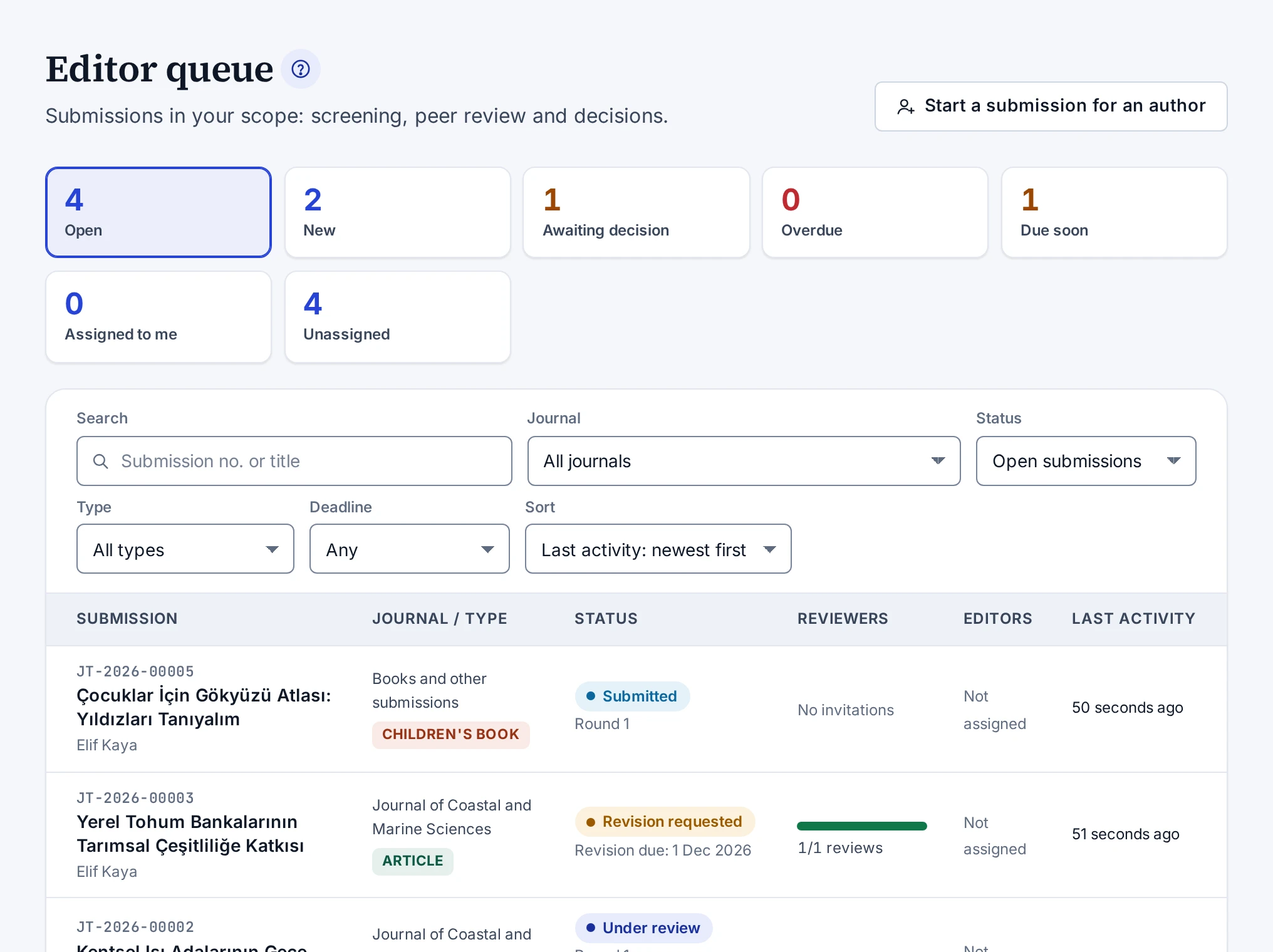
Quick filters
The boxes above the list, with their counts, are quick filters. Pressing a box narrows the list to those submissions.
| Box | Submissions it shows |
|---|---|
| Open | All submissions without a final outcome |
| New | Submissions that are submitted or in screening |
| Awaiting decision | Submissions under review and submissions with a submitted revision |
| Overdue | Submissions where the deadline for a reviewer response, a review or a requested revision has passed |
| Due soon | Submissions where one of these deadlines falls within 7 days |
| Assigned to me | Open submissions assigned to you |
| Unassigned | Open submissions without an assigned editor |
Filters
The Filters section has the following filters:
- The Submission no. or title box searches the submission number and the title.
- In the Journal list, editors authorised for the whole platform also see the Without a journal (books, chapters, theses …) option.
- The Status and Type lists narrow the submissions by status and by type.
- The Deadline list shows submissions whose deadline falls within 3, 7, 14 or 30 days. Overdue submissions are not in this list but in the Overdue box.
The filters stay in the address bar. If you share the link, the same list opens.
Sorting
The Sort list sorts by last activity, by submission date or by deadline. By default the list is sorted by last activity. The Deadline: nearest first option puts overdue submissions at the top and submissions without a deadline at the bottom.
Columns
| Column | What it shows |
|---|---|
| Submission | Submission number, title and the name of the submitter |
| Journal / type | The journal of the submission or Books and other submissions, and the publication type |
| Status | Status, the Overdue label if any, the review round or the revision deadline, and the nearest reviewer deadline |
| Reviewers | The number of reviews received and the number of invitations in the current round. Hovering over it shows how many reviewers are awaiting a response, reviewing or have declined |
| Editors | The assigned editors or Not assigned |
| Last activity | The time of the last activity on the submission |
Submitting on behalf of an author
Only people with the permission to start submissions on behalf of authors see the Start a submission for an author button. The screen it opens is described in Submitting on Behalf of an Author.
When you open a submission, the Next step card tells you what to do at that moment. The parts of the submission screen are described in Editor Submission Screen.
How-to
Screening a Submission
Checking the form of a new submission, asking the author for missing documents and sending the submission to peer review.
During screening you check whether a submission is ready to go to reviewers. A new submission arrives with the status Submitted. When you send it to peer review, its status changes to Under review.
Starting screening
- On the Editorial → Editor queue screen, open the submission.
- On the Next step card of the Overview tab, press Start screening.
- In the confirmation dialog, press the same button again.
The status of the submission changes to Screening. The author sees the new status on the page of their submission. This step is optional. You can also send a suitable submission straight to peer review.
Cards to check
Check the following cards on the Overview tab:
- The Metadata card shows the title, abstract, keywords and type-specific details. If the submission is written in two languages, you switch between them with the language tabs.
- The Authors card shows the authors in order with their institutions and ORCID iDs. The corresponding author is marked separately.
- The Declarations card shows the declarations the author confirmed and the answers they gave.
- On the Files card, the Anonymous files are the files the reviewers will see. A file whose metadata was removed carries the Metadata removed label. A file whose text contains an author's name, e-mail address or ORCID iD carries the The text of the file names an author label, with whose details appear where below it. Reviewers do not see this result. The Identified files are open only to editors.
Requesting missing documents
- On the Next step card, press Request missing documents.
- Optionally, fill in the Subject field.
- In the Message to the author field, state clearly what is missing. The text must be at least 10 characters long.
- Press Request missing documents in the dialog.
The status of the submission changes to Documents missing and an e-mail goes to the author. Your message also appears on the Messages tab of the submission. When the author completes the missing items and submits again, the status returns to Submitted and you get a notification.
Missing documents can be requested only for a submission whose status is Submitted or Screening.
Uploading an anonymous copy
If the anonymous manuscript still contains the name or institution of an author, you can upload a cleaned copy for the reviewers. The The text of the file names an author label appears when an author's name, e-mail address or ORCID iD is in the text. Institution names and self-citations such as "Author, 2024" are not searched for; look out for them as you read.
- Go to the Upload an editor file section at the bottom of the Files card.
- In the File type list, select Anonymous manuscript.
- Optionally, fill in the Description field.
- Drop the PDF, DOCX or ODT file on the upload area.
The new file replaces the author's anonymous manuscript. The old file stays in the list with the Replaced by a newer file label. The file you upload carries the Uploaded by an editor label and opens after the virus scan. Author details in the file properties are removed during the upload. The reviewers also see the files you upload as Supplementary file.
When the submission has the status Revision requested, the copy you upload goes to the new round the author is preparing and replaces the author's revised manuscript there. The text the reviewers of the previous round read stays as it was.
Sending to peer review
- On the Next step card, press Send to peer review.
- In the confirmation dialog, press the same button again.
The status of the submission changes to Under review and the author gets a notification. From this stage on, the author cannot change the files. You can now invite reviewers. The steps are in Inviting Reviewers.
To reject an out-of-scope or unsuitable submission without sending it to reviewers, see Desk-Rejecting a Submission.
How-to
Desk-Rejecting a Submission
Rejecting an out-of-scope or unsuitable submission without sending it to reviewers, or saving a rejection recommendation for it.
A desk rejection is a final decision. The submission is rejected without going to reviewers, a decision letter goes to the author and the process closes. Only an Editor-in-chief makes this decision. In the same situation a Section editor saves a rejection recommendation.
You can make this decision while the status of the submission is Submitted, Screening or Documents missing. For a submission in peer review, see Making a Decision.
Rejecting the submission
- On the Next step card of the Overview tab, press Desk reject.
- In the Rationale (editors only) field, write the rationale for the decision. The rationale must be at least 10 characters long and is not shown to the author.
- The Decision letter to the author field comes filled with a draft letter. Edit the letter. The letter must be at least 10 characters long.
- Press Desk reject in the dialog.
- Read the outcome in the confirmation dialog and confirm.
You can also make the same decision on the Decision tab by selecting Desk reject. On this tab the letter starts empty, and the Draft a letter button writes the draft. If you wrote or changed the letter yourself, the panel asks before it replaces the letter with the draft.
The status of the submission changes to Rejected. The decision is stored as a record that cannot be changed, and it is written to the audit log.
A section editor's rejection recommendation
For a submission in screening, a Section editor sees the Decision recommendation section on the Decision tab. Only Desk reject can be selected in this section.
- On the Decision tab, select Desk reject.
- Fill in the Rationale (editors only) field. The letter is optional for this recommendation.
- Press Save recommendation and confirm.
The recommendation does not change the status of the submission. A notification goes to the editors-in-chief assigned to the submission or, if none is assigned, to the editors with the permission to decide. The recommendation appears in the Decisions and recommendations section at the bottom of the tab.
How-to
Inviting Reviewers
Inviting a reviewer to a submission under review, from the reviewer pool or by e-mail address.
You invite reviewers from the Reviewers tab of the submission. You can invite only while the status of the submission is Under review.
- On the Editorial → Editor queue screen, open the submission and go to the Reviewers tab.
- Press Invite reviewer.
- Choose the reviewer in one of two ways:
- On the From the reviewer pool tab, search by name, e-mail, institution or expertise. The candidates are ranked by the keywords of the submission. You can change the ranking with the Matching keywords field. Each candidate shows their number of ongoing, completed and declined invitations. A candidate whose expertise matches the submission carries the Matched label. Select the row of a suitable candidate.
- On the By e-mail tab, fill in the E-mail address, Full name and Invitation language fields. If an account with this address exists, the invitation goes to that account. For a person without an account, a reviewer account is created and a link for setting a password is sent. In this case the full name is required.
- Optionally, add a Personal message. If you leave Days to respond and Days to review empty, the periods from the site settings apply. By default these are 7 and 21 days.
- Press Send invitation.
The response period can be between 1 and 60 days, the review period between 1 and 180 days. The review deadline cannot be earlier than the response deadline. If you enter a review period shorter than the response period, both deadlines fall on the same day.
After the invitation
The invitation e-mail contains only the submission number and the journal name. The reviewer also gets a notification in the panel. Reminders go out automatically, and an invitation that is not answered in time closes. The periods are described in Reviewer Deadlines and Reminders.
You follow the status of the invitation, its deadlines and the incoming review on the same tab. Changing deadlines, cancelling an invitation and inviting the same person again are described in Tracking Invitations and Reviews.
Rules the system applies
- The authors of the submission and the people already invited in this round do not appear in the candidate list.
- The pool includes only active accounts with a verified e-mail address that have the reviewer role or joined the reviewer pool from their profile.
- You cannot invite yourself as a reviewer.
- If a person already has an open invitation in the same round, a second invitation is not sent to them.
- The Reviewer rules note at the top of the tab checks the number of reviewers and their institutions. These warnings do not block the action.
How-to
Tracking Invitations and Reviews
Following the status and deadlines of invitations on the Reviewers tab, reading reviews, changing deadlines, cancelling an invitation or inviting a reviewer again.
The Reviewers tab of a submission shows the reviewer invitations by round. The newest round is at the top and carries the Current round label. The card of a closed round shows the date it closed.
Invitation row
Each invitation row shows the reviewer's name, e-mail address, institution and the status of the invitation. The status is Awaiting response, Accepted, Declined, Expired or Cancelled.
| In the row | What it shows |
|---|---|
| Invited | The invitation date and the editor who sent the invitation |
| Respond by | For an invitation awaiting a response, the response deadline and the number of days left |
| Review due | For an open invitation, the review deadline and the number of days left |
| Responded | When the reviewer responded to the invitation |
| Account closed | Shown on an open invitation when the reviewer's account was closed. The reviewer gets no reminders; cancel the invitation and invite another reviewer. |
| Overdue | The label that appears when an open deadline has passed |
If the reviewer accepted the invitation, the row shows their conflict-of-interest declaration. If the reviewer disclosed a possible conflict, their explanation is here too. If they declined, the Reason for declining they wrote appears. The row also shows the number of reminders sent to the reviewer.
Reading the review
When the reviewer submits the review, a Show review link appears in the row. The review shows the reviewer's recommendation and scores, the Comments to the author and Confidential comments to the editor sections and, if there is one, the Review attachment file. Confidential comments to the editor are never shown to the author.
If the reviewer has started the review but not submitted it, the row says the review is a draft. The submitted reviews of the round also appear side by side on the Decision tab. Notes the reviewer sends after the review are listed as internal notes on the Messages tab.
Invitation actions
The Invitation actions menu of each invitation in the current round holds the actions that fit the status of the invitation:
- Change deadlines appears for open invitations. For an invitation awaiting a response, you change both dates. For an accepted invitation, you change only the review deadline. The date fields cannot be left empty. The new date must be in the future, and the review deadline cannot be earlier than the response deadline.
- Cancel invitation appears for open invitations. You need to write at least 5 characters in the Reason (not shown to the reviewer) field. The reviewer loses access to the files and is informed. An invitation whose review has been submitted cannot be cancelled.
- Invite again appears for declined, expired and cancelled invitations. A new invitation record opens for the same reviewer, and the earlier invitation stays closed. Once a decision is made, the round takes no more reviewers and this action no longer appears in the menu.
A deadline change is written to the audit log, and the reminder counter is reset. Editors with the permission to invite reviewers see the menu. An invitation with no action left has no menu, for example one whose review has been submitted.
Reviewer rules note
The Reviewer rules note at the top of the tab warns about the following cases, based on the criteria of TR Dizin (Türkiye's national citation index):
- The number of reviewers in the round is below the minimum the journal requires. If the journal has not set a number, at least two reviewers are expected.
- Two reviewers are from the same institution.
- A reviewer is from the same institution as an author.
- The reviews received include an accept or minor revision recommendation together with a reject recommendation, and there are fewer than three reviews. In this case you may want to invite a third reviewer.
Invitations awaiting a response, accepted invitations and invitations with a submitted review count towards the number of reviewers. The warnings do not block any action. The minimum number of reviewers the journal requires is the setting described in Setting the Reviewer Minimum and Reviewer List.
When reminders go out is described in Reviewer Deadlines and Reminders.
How-to
Making a Decision
Reading the reviews of a review round and making the final decision, or saving a decision recommendation as a section editor.
You make the decision on the Decision tab of the submission. An Editor-in-chief makes the final decision. A Section editor saves a decision recommendation on the same tab. The submitted reviews of the round appear side by side at the top of the tab.
A decision is made while the status of the submission is Under review or Revision submitted. To reject a submission that has not been sent to reviewers, see Desk-Rejecting a Submission.
Final decision
- In the Decision section of the Decision tab, select Accept, Minor revision, Major revision or Reject.
- For a revision decision, check the Revision period (days) field. The field comes filled with the period from the site settings and must be between 7 and 365 days.
- In the Rationale (editors only) field, write the academic rationale for the decision. The rationale must be at least 10 characters long and is not shown to the author.
- In the Reviewer comments to share with the author section, clear the tick of any review you do not want to share with the author. All submitted reviews come ticked.
- Fill in the Decision letter to the author field. The Draft a letter button writes a draft based on the decision you selected and the shared reviews. If the field holds text you wrote or changed, the panel asks before it replaces that text with the draft. The letter must be at least 10 characters long.
- Press Issue decision, then read the outcome in the confirmation dialog and confirm.
Unless the site settings were changed, the revision period is 30 days for a minor revision and 60 days for a major revision.
While you fill in the form, you can move to another tab to look at a file or at the details of the submission. The decision type, rationale and letter you entered stay in the form until you come back.
Effects of the decision
- The decision is stored as a record that cannot be changed, and it is written to the audit log.
- The round closes. The invitations of reviewers who have not submitted a review close, and these reviewers are informed.
- The decision letter goes to the author. Of the shared reviews, the author sees only the Comments to the author section and the attachment, if any. In open review the author also sees the name of the reviewer of a shared review.
- An accept decision opens a production job automatically.
- A revision decision gives the author a deadline. The author is reminded once before the deadline. Unless the setting was changed, the reminder goes out 3 days before the deadline.
Decision recommendation
A Section editor sees the Decision recommendation section on the same tab.
- In the Decision section, select the decision you recommend.
- Fill in the Rationale (editors only) field. Optionally, also write a draft letter for the editor-in-chief.
- Press Save recommendation and confirm.
The recommendation does not change the status of the submission. A notification goes to the editors-in-chief assigned to the submission or, if none is assigned, to the editors with the permission to decide.
Decision and recommendation history
All decisions and recommendations stay in the Decisions and recommendations section at the bottom of the tab. Each entry shows the decision type, whether it is a final decision or a recommendation, the round, the person who made it, the date and the rationale. You open the letter with the Show letter link.
If you cannot see the decision button, see The decision button is missing. The steps after a revision arrives are in Starting a New Round After a Revision.
How-to
Starting a New Round After a Revision
Making a decision directly after the author submits a revision, or sending the submission to a new review round.
When the author submits a revision, the status of the submission changes to Revision submitted and a new round starts. The editors of the submission get a notification. It is up to you whether you send the revision to reviewers again or make a decision directly.
Checking the revision
The card of the new round opens on the Reviewers tab. The card shows the Author’s response to reviewers text and the Files of this round list. The invitations and reviews of the earlier rounds stay on the tab.
Direct decision
If no new reviewer opinion is needed, an Editor-in-chief makes the decision right away on the Decision tab. The steps are in Making a Decision.
New review round
- On the Next step card of the Overview tab, press Send to peer review and confirm.
- On the Reviewers tab, press Invite reviewer.
- Select the reviewers of the previous round from the pool again. If a reviewer does not appear in the pool, enter their e-mail address on the By e-mail tab. If an account with this address exists, the invitation goes to that account.
- Press Send invitation.
You cannot use the Invite again action for an invitation from a previous round, because the action appears only on the invitations of the current round. The reviewer receives a new invitation for the new round. After accepting it, they see the author's response to the reviewers and the current anonymous files.
The steps of the invitation are in Inviting Reviewers.
How-to
Messaging the Author
Sending messages to the author from the Messages tab of a submission, writing internal notes between editors and following the correspondence.
All correspondence with the author runs on the Messages tab of the submission. On the same tab you also write internal notes that only editors see.
- Open the submission and go to the Messages tab.
- Select Message to the author or Internal note (editors only).
- Optionally, fill in the Subject field.
- Write your text in the Message field.
- Press Send.
When you send a message to the author, the author is informed by e-mail. The e-mail does not contain the text of the message and directs the author to the panel. Internal notes are never shown to the author and are marked with the Internal note label in the list.
If you move to another tab before you send the message, what you wrote stays in the box until you come back. If you try to leave the screen without sending it, the panel asks first.
Other entries on the tab
- Requests for missing documents sent during screening are listed as messages to the author.
- Notes that reviewers send after their reviews appear as internal notes.
- Messages the author writes to the editors are in the same list.
Messaging permission
Sending messages to the author requires the Message authors about their submission permission. If you do not have this permission, the tab says so in a note and you can only add internal notes.
Withdrawal reason
If the author withdraws the submission, the reason they wrote appears under the Submission withdrawn entry on the Timeline tab. The reason is not included in e-mails and is not shown to reviewers. A withdrawal also closes the open reviewer invitations.
How-to
Submitting on Behalf of an Author
Opening a submission draft for a registered author account, filling in the metadata, authors and files, and leaving the draft to the author.
If an author cannot prepare their submission themselves, you can open the draft for them. Only the author confirms the declarations, and only the author submits. The author needs a registered, active account with a verified e-mail address.
Starting the draft
- On the Editorial → Editor queue screen, press Start a submission for an author.
- In the Author account field, type at least 3 letters of the author's name or the full e-mail address.
- In the list, press Select in the author's row.
- Select the Publication type and the Main language of the submission. For an article, also select the Journal.
- Press Create the draft.
The list shows e-mail addresses masked. Only the account whose full address you typed shows its address in full. The journal list contains the journals in the scope of your role that accept submissions. Types not tied to a journal, such as books, chapters or theses, need a role granted for the whole platform.
The draft appears in the author's My submissions list, and the author gets a notification in the panel. This notification is not sent by e-mail.
Filling in the draft
- On the screen that opens, fill in the Metadata, Authors and Files tabs. Changes are saved automatically.
- On the Status tab, check what is left for the author.
- Press Leave it to the author.
When the author confirms the declarations and submits, the submission appears on the Editor queue screen. The submission does not enter the queue until the author submits it.
Rules
- Only the person who started the draft edits it. For that, the draft must not have been submitted yet and your permission for the journal must still be in place.
- You cannot open a draft in your own name this way. You start your own submissions from the My submissions screen.
- The action is written to the audit log. The Started by the editorial office on the author’s behalf entry appears on the author's timeline.
- Your drafts that have not been submitted yet stay in the Drafts I started for authors list.
The parts of the screens are described in On-Behalf Submission Screen and On-Behalf Draft Screen.
Screens and settings
Editor Submission Screen
The header, Next step card, tabs, cards and rules of the screen where an editor opens a submission.
This screen opens when you open a submission from the queue. Screening, reviewer invitations, the decision and the correspondence all run from this screen. The buttons on the screen depend on the status of the submission and on your permissions.
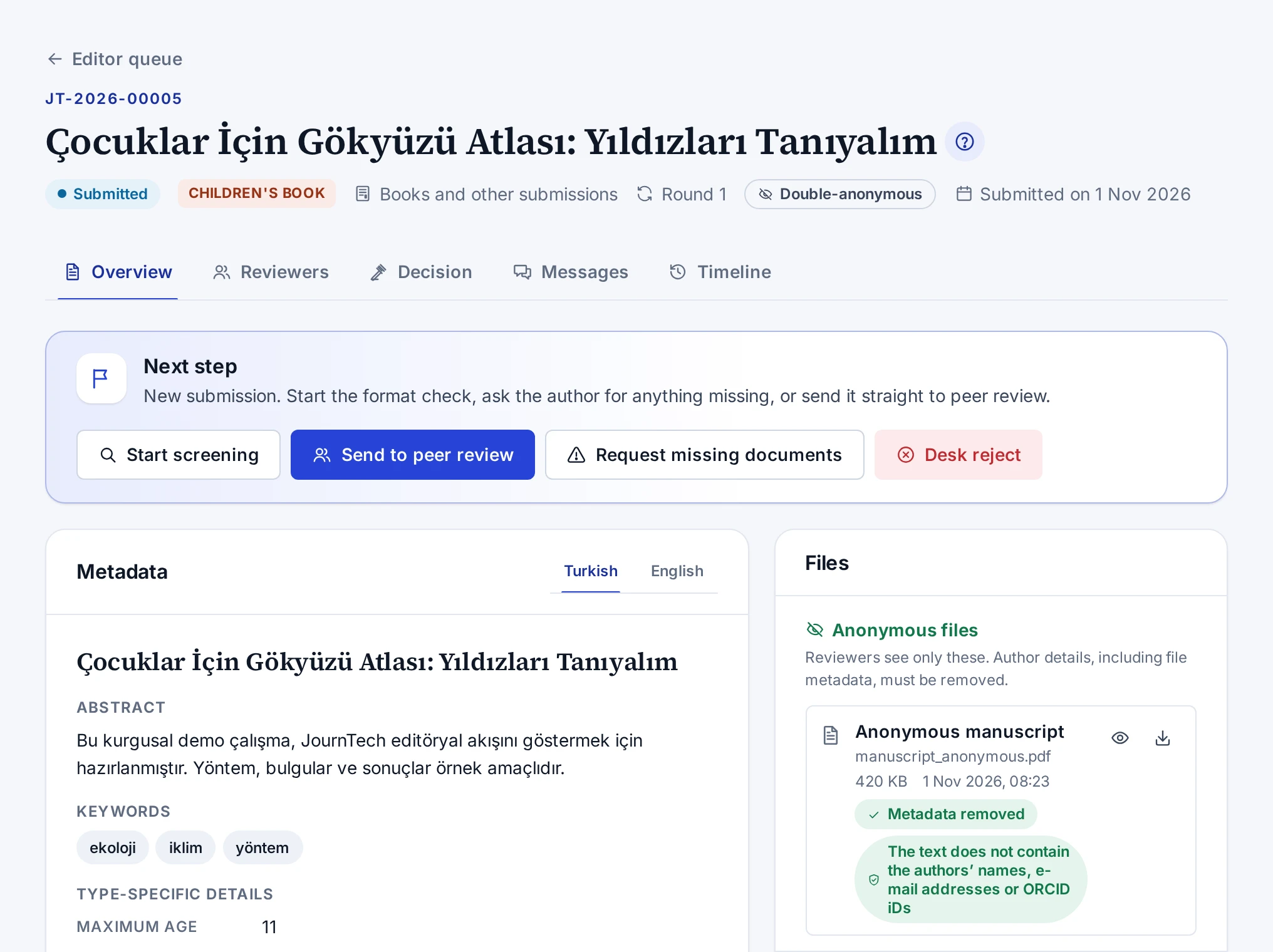
Header
The header shows the submission number and title. Below them are the status of the submission, the publication type, the journal, the review round and the submission date. The peer review type also appears here as Double-anonymous, Single-anonymous or Open review. For submissions not tied to a journal, Books and other submissions appears in place of the journal.
| Button | When it appears |
|---|---|
| Referee dossier (PDF) | If you have the permission to decide. It does not appear while the status of the submission is Submitted or Screening. Details are in Downloading the Referee Dossier |
| Open the production job | If a production job has been opened for the submission and you may see production jobs |
| Catalogue record | If the submission has a catalogue record and you may see draft records |
If you reviewed this submission as a reviewer, a separation-of-duties warning appears under the header. In that case you cannot make the final decision.
Tabs
| Tab | Contents |
|---|---|
| Overview | The Next step card, metadata, authors, declarations, files, editor assignments and the submitter |
| Reviewers | Reviewer invitations by round, deadlines, reviews and the reviewer rules note. The number on the tab is the count of open invitations in the current round |
| Decision | The reviews of the round, the final decision or decision recommendation form, and the history of decisions and recommendations. On a submission awaiting a decision the tab shows a dot |
| Messages | Messages with the author and the internal notes of the editors |
| Timeline | Every event of the submission. Events the author does not see carry the Editors only label |
The open tab stays in the address bar. If you share the link, the same tab opens.
Next step card
The card says what you need to do in the current status of the submission and shows the buttons for the actions available in that status.
| Status | Buttons |
|---|---|
| Submitted | Start screening, Send to peer review, Request missing documents, Desk reject |
| Screening | Send to peer review, Request missing documents, Desk reject |
| Documents missing | Desk reject |
| Under review | Invite reviewer, Final decision or Decision recommendation |
| Revision submitted | Send to peer review, Reviewers, Final decision or Decision recommendation |
Only editors with the permission to decide see the Desk reject button. For submissions awaiting a revision and for accepted, rejected and withdrawn submissions, the card only explains the status.
Overview cards
| Card | Contents |
|---|---|
| Metadata | Title, subtitle, abstract, keywords and type-specific details. Language tabs if the submission is in two languages |
| Authors | The authors in order with their institutions, e-mail addresses and ORCID iDs, the corresponding author and the contributor roles |
| Declarations | The declarations the author confirmed, with their versions, answers and dates |
| Files | Anonymous files, Identified files and the Upload an editor file section |
| Editor assignments | The assigned editors, their roles and the person who assigned them |
| Submitted by | The name, e-mail address and institution of the account that sent the submission |
Screen rules
- The screen opens only submissions within your scope that have been submitted. Drafts do not open here.
- A submission you are an author of does not open.
- If the status of the submission changed after you opened the screen, an action may be refused. Reload the page to see the current status.
- The decision type, rationale and letter you entered in the decision form stay when you move to another tab. The message you are writing stays too. If you try to leave the screen before you issue the decision or send the message, the panel asks first.
Related topics
Screens and settings
On-Behalf Submission Screen
The New draft card of the screen where editors open a draft for a registered author, and the list of the drafts they started.
The Submission on behalf of an author screen is where you open a submission draft for a registered author. You reach the screen with the Start a submission for an author button on the Editor queue screen.
New draft card
| Field | Description |
|---|---|
| Author account | Search with at least 3 letters of the author's name or with the full e-mail address. Only active accounts with a verified e-mail address are listed. You change the selected account with the Change button |
| Publication type | Article, Book, Book chapter, Proceedings paper, Thesis or Children's book. Types not tied to a journal appear only for roles granted for the whole platform |
| Main language of the submission | Turkish or English. The options come from the institution's metadata languages |
| Journal | Appears only for an article. Lists the journals in your scope that accept submissions through the panel |
The Create the draft button opens the draft in the author's account and takes you to the draft screen.
If there is no matching account, the author has to register first or a system administrator has to invite the account. If no journal in your scope accepts submissions, a warning saying so appears in place of the journal field.
Drafts I started for authors
The Drafts I started for authors list shows your drafts that the author has not submitted yet. Each row shows the title and type of the draft, the author's name, the journal and the time of the last activity. The Edit button opens the draft. When the author submits, the draft leaves the list and appears in the editor queue.
Screen rules
- Editors and system administrators with the permission to start submissions on behalf of authors see the screen.
- You cannot open a draft in your own name.
- The notification to the author is sent only inside the panel.
The steps are in Submitting on Behalf of an Author. The screen where you fill in the draft is described in On-Behalf Draft Screen.
Screens and settings
On-Behalf Draft Screen
The header, the Metadata, Authors, Files and Status tabs and the rules of the screen where you fill in a draft opened for an author.
On this screen you fill in the draft you opened for an author. The title of the screen is the title of the draft. If no title has been entered, it reads Untitled draft.
Header
The note under the title says for whom the draft is being prepared. The publication type, the journal and the author's name and e-mail address also appear here. The save status shows as Saving…, Unsaved changes or the time of the last save.
The Leave it to the author button in the header saves the changes and takes you back to the Submissions for authors screen.
Tabs
| Tab | Contents |
|---|---|
| Metadata | The metadata step of the submission wizard. Title, abstract, keywords and type-specific details |
| Authors | The authors, their order and institutions, and the corresponding author |
| Files | The anonymous manuscript and the other files |
| Status | The "What is left for the author" list. It says so when everything except the declarations is complete |
A tab with missing items shows a dot.
Screen rules
- Changes are saved automatically.
- If an author card has details but no name, the screen keeps you on the Authors tab and shows the error.
- The declarations are not on this screen. The author confirms the declarations and submits.
- Only the person who started the draft opens it. Once the author submits, the draft no longer opens on this screen and the submission enters the editor queue.
The steps are in Submitting on Behalf of an Author.
Concept
Separation of Duties
An editor who reviewed a submission cannot decide on it, authors take no role on their own submissions, and only the editor-in-chief makes final decisions.
Separation of duties means that one person does not take two roles on the same submission. A person who reviews a work does not decide on it. An author is not an editor or a reviewer on their own submission either. JournTech applies these rules automatically.
Editors who review
If you accepted a reviewer invitation for a submission, you cannot make the final decision on that submission. The rule applies even if you have an editor role, and it covers every round of the submission. A warning appears on the submission screen and the decision buttons are hidden. You cannot be assigned to such a submission as an editor either. Another editor-in-chief makes the decision.
Your own submissions
Submissions you are an author of do not appear in your queue and do not open. The system recognises you as an author if you own the submission or if your e-mail address or ORCID iD is in the author list. The authors of a submission cannot be assigned to it as reviewers or editors. You cannot invite yourself as a reviewer either.
Permission to make final decisions
Only an Editor-in-chief makes final decisions. A Section editor saves a decision recommendation, and the recommendation does not change the status of the submission. A System administrator can open every screen but cannot make final decisions. An administrator who needs to make decisions is also given the editor-in-chief role.
Whether reviewers and authors see each other's identity is explained in Peer Review Types.
Troubleshooting
The decision button is missing
Causes and fixes when the Decision tab of a submission has no Issue decision button or only lets you save a recommendation.
The Issue decision button depends on your role, the status of the submission and your part in the submission. Check the causes below in order.
You are a section editor
A Section editor does not make final decisions. They see the Decision recommendation section on the tab and save a recommendation with the Save recommendation button. An Editor-in-chief makes the decision.
Your editor-in-chief role is for another journal
Your roles can differ from journal to journal. For example, you can be editor-in-chief of one journal and section editor of another. Your permission to decide applies only to the journal where you are editor-in-chief.
The submission is not at the decision stage
A final decision is made while the status of the submission is Under review or Revision submitted. In any other status the tab gives the current status of the submission in a note. To reject a submission that has not been sent to reviewers, see Desk-Rejecting a Submission.
You reviewed this submission
If you accepted a reviewer invitation for the submission, the decision buttons do not appear and the tab says so in a note. Another editor-in-chief has to make the decision. The rule is explained in Separation of Duties.
You are a system administrator
The System administrator role does not carry the permission to make final decisions. With this role you can only save decision recommendations. If you need to make decisions, you also have to be given the Editor-in-chief role.
Troubleshooting
The reviewer did not receive the invitation e-mail
Helping a reviewer who says the invitation e-mail never arrived to find the invitation in the panel.
E-mail sending may be turned off on the installation. The invitation also goes out as a notification in the panel, along with the e-mail. A reviewer with an account therefore finds the invitation in the panel.
A reviewer with an account
The reviewer signs in with the e-mail address the invitation was sent to and opens the Invitations tab of the Author & reviewer → Reviewing screen. The View invitation button opens the invitation there.
The reviewing screens require a verified e-mail address. If the reviewer's address is not verified, they need to verify it first.
A reviewer with a new account
If the person you invited by e-mail address has no account, the link for setting a password goes out only by e-mail. If e-mail sending is turned off, a system administrator creates this link and passes it on to the person. The administrator's steps are in Managing User Accounts.
The e-mail sending setting is described in Configuring Outgoing E-mail.
Troubleshooting
The reviewer's deadline has passed
Giving more time, cancelling the invitation or inviting another reviewer when a reviewer did not respond in time or is late with the review.
The row of an invitation whose deadline has passed carries the Overdue label. What you do depends on the status of the invitation.
The reviewer did not respond to the invitation
An invitation whose response period has ended closes automatically shortly afterwards, and its status changes to Expired. You get a notification too. You can invite the same reviewer again with Invite again in the Invitation actions menu of the invitation, or invite another reviewer.
The reviewer is late with the review
For an accepted invitation, reminders go to the reviewer at regular intervals once the review deadline has passed. To give the reviewer more time, select Change deadlines in the Invitation actions menu of the invitation and enter a new Review due date. The reminder counter is reset.
If the reviewer is not going to send a review, cancel the invitation with Cancel invitation and invite another reviewer.
The actions are described in Tracking Invitations and Reviews. When reminders go out is described in Reviewer Deadlines and Reminders.
Troubleshooting
Book submissions do not appear in the queue
Why submissions not tied to a journal, such as books, chapters and theses, do not appear in the editor queue, and how to fix it.
Submissions not tied to a journal are visible only to editors whose role was granted for the whole platform. Book, book chapter, proceedings paper, thesis and children's book submissions belong to this group. If your role was granted for one journal, you do not see these submissions.
Solution
If you need to work on these submissions, ask your system administrator to grant your role for the whole platform. Granting roles is described in Granting and Revoking Roles.
Filtering these submissions
Editors authorised for the whole platform list only these submissions with the Without a journal (books, chapters, theses …) option of the Journal filter in the queue. The journal column of these submissions shows Books and other submissions.
Feature
Production
Running the copy-editing, typesetting and proof work for an accepted work and releasing it to the catalogue.
When an editor accepts a submission, a job for the work opens automatically on the Editorial → Production screen. The job's checklist has these tasks: copy-editing, typesetting, cover, proof and author approval, metadata check, identifiers, licence and access, and final approval. The Production coordinator assigns the tasks, uploads the proofs and the final files and shares the proof with the author.
When the checklist is complete, the work is released to the catalogue with its publication settings. The record is published at once or stays a draft for the catalogue editors' final check. Because the release is an editorial decision, the catalogue's editor approval rule does not cover this step.
Editors and the Unit manager role can only view jobs. A job's statuses are described in Job Statuses.
Screens and settings
Production Board
The cards, filters and Open job button of the board that lists production jobs in columns by status.
The Editorial → Production screen shows the production jobs of accepted works as a board. If your role was granted for one journal, you see only the jobs of that journal.
Columns
Jobs are listed in four columns by status. Each column shows its number of jobs at the top, and the numbers follow the filters you choose. The Released column shows the jobs released last. The button at the bottom of the column brings the earlier ones too.
| Column | Jobs |
|---|---|
| Open | Jobs where work has not started yet |
| In progress | Jobs where work has started |
| Ready to release | Jobs with all required tasks done |
| Released | Jobs released to the catalogue |
The statuses are described in Job Statuses.
Cards
Each card shows the submission number and the type, title and journal of the work. The progress bar of the card counts the completed tasks. Below it you see the number of open required tasks, or Required tasks done. The bottom line of the card gives the production lead and the planned release date. An overdue job carries the Overdue badge.
Filters
- The Search box searches submission numbers and titles.
- Assigned to me shows the jobs where you are the production lead or have an open task assigned to you.
- Overdue shows the jobs that have a task past its due date, or that are not released by their planned release date.
- Show cancelled jobs lists cancelled jobs in a separate section at the bottom of the board. The ones cancelled last come first.
Opening a job
Jobs open automatically with the editor's acceptance decision. If an accepted submission has no job, use the Open job button. The button appears to people with the permission to manage production. The steps are in Planning a Job.
Screens and settings
Production Job Page
The checklist, tasks, files, front matter, comments, job details and release settings cards on the page of a production job.
When you open a job from the board, the header shows the title, submission number, type and journal of the work, the production lead, the planned release date and the acceptance date. Without the production permission, you can only view the page, and a note says so. When the production lead's account was closed, the Account closed label appears next to the name, and the production coordinators receive the notifications meant for the lead.
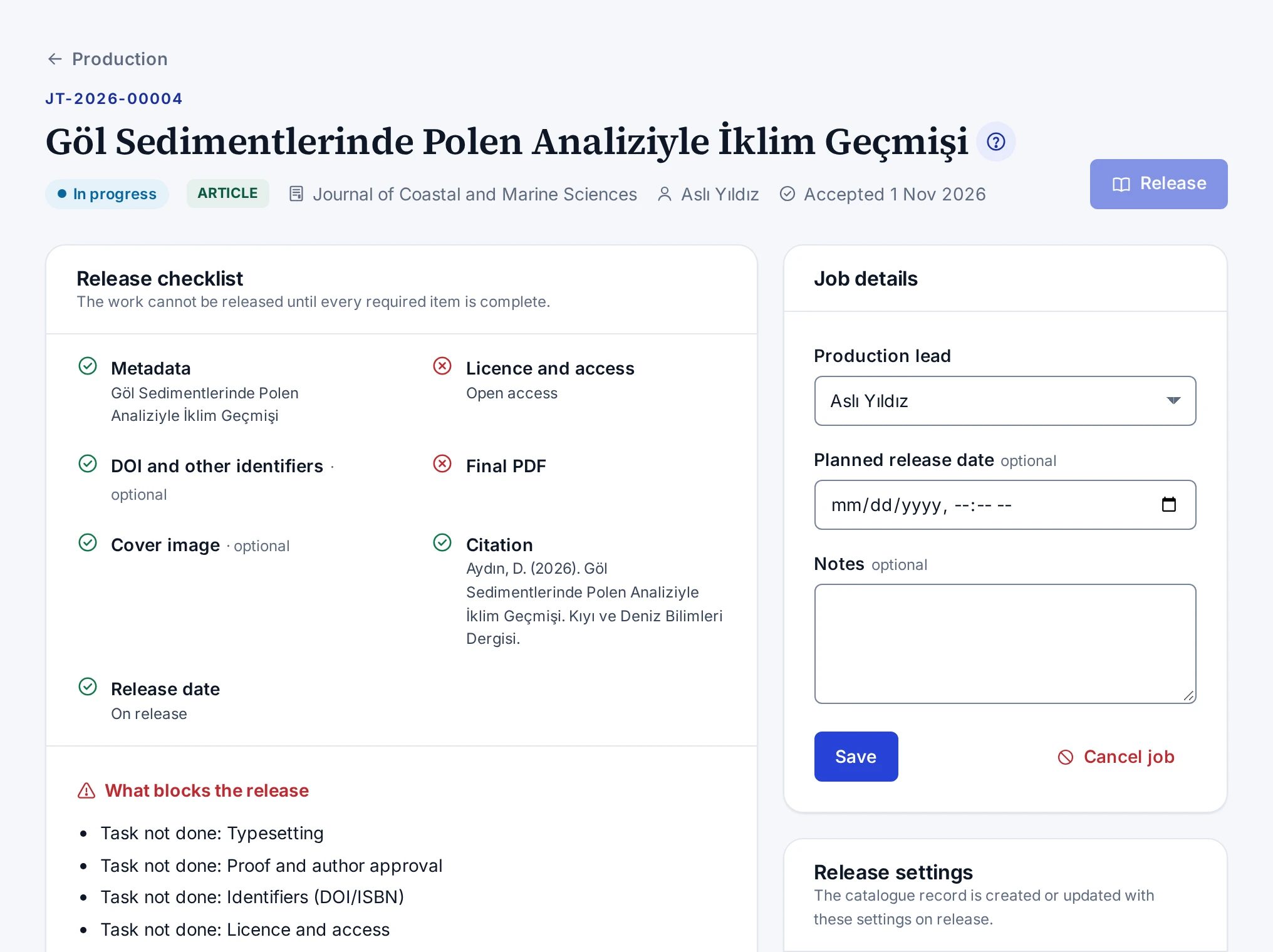
Top buttons
- Open the submission opens the editor page of the submission and appears to people who can see the editor queue.
- Open the catalogue record opens the catalogue record once the job is released.
- Release opens the release dialog. While an item blocks the release, the button cannot be pressed.
Cards
| Card | What it shows |
|---|---|
| Release checklist | The metadata, licence, identifier, final PDF, cover, citation and release date items, and what blocks the release |
| Tasks | The tasks of the checklist with their statuses, assignees and due dates |
| Files and proofs | The versions of the proof, final PDF, EPUB, cover and other files |
| Front matter | The front matter for the first page of the article. Shown for articles only. |
| Comments | The comments of the team and the author |
| Job details | The production lead, planned release date, notes, cancelling and reopening |
| Release settings | The access, licence, identifier, placement and address settings of the catalogue record |
Rules of the screen
- On a released or cancelled job, tasks and settings cannot be changed. Reopen the job to change them.
- You cannot upload files to a cancelled job.
- The assignee of a task can change the status and the note of their own task, even without the production permission.
- While a file is being scanned for viruses, the page refreshes itself every few seconds.
The steps are in Planning a Job, Managing Tasks, Uploading Files and Sharing Proofs, Filling in the Release Settings and Releasing a Work.
Concept
Job Statuses
The Open, In progress, Ready to release, Released and Cancelled statuses of a production job, and how the status follows the checklist.
You do not choose the status of a job by hand. The status changes automatically with the tasks on the checklist. Only releasing, cancelling and reopening change the status directly. This way each column on the board shows where a job really stands.
| Status | When |
|---|---|
| Open | The job is open and no task has started |
| In progress | A task has started or is done. Uploading a file to the job also moves it to this status. |
| Ready to release | All required tasks are done |
| Released | The work has been released to the catalogue |
| Cancelled | The job was cancelled with a reason |
Overdue jobs
A job counts as overdue while a task past its due date is still open. Done and skipped tasks do not count. A job that is not released by its planned release date counts as overdue too. Overdue jobs are marked on the board and listed by the Overdue filter.
Who changes a job
The Production coordinator changes all settings of a job and releases the work. Editors and the Unit manager can only view the job. The assignee of a task can change the status and the note of their own task.
The release steps are in Releasing a Work, and cancelling and reopening in Cancelling and Reopening a Job.
Troubleshooting
The Open job button is missing on the board
Causes when the Open job button does not appear on the production board, or the dialog lists no accepted submission.
Jobs open automatically with the editor's acceptance decision. The Open job button is only for jobs that did not open automatically, and it appears to people with the permission to manage production. The Production coordinator and System administrator roles have this permission.
You do not have the permission
Editors and the Unit manager can only view the board. If an accepted work has no job on the board, tell a person with the Production coordinator role or your system administrator.
The dialog lists no submission
The dialog lists only accepted submissions in your scope that have no job. If there is none, the dialog says No accepted submissions found. A submission whose job was cancelled does not appear either, because the submission has a job. Find the cancelled job with the Show cancelled jobs button on the board and reopen it.
Troubleshooting
The Release button is disabled or missing
Causes and fixes when you cannot press the Release button of a production job, or the button does not appear at all.
The Release button depends on the status of the job, its checklist and your permissions. Check the causes below in order.
An item blocks the release
If the button is disabled, look at the What blocks the release list on the Release checklist card and complete each item. The details are in Releasing a Work.
The job is released or cancelled
On a released or cancelled job, the button is hidden. Reopen the job to make a correction.
You do not have the permission
Releasing needs a separate permission (Release accepted works to the catalogue). Editors and the Unit manager can only view the job.
The check passes but the release fails
The Check button also tries the catalogue rules and lists any problems on the card. If an error comes up in the release dialog, the dialog lists the blockers one by one.