

JournTech
Unit Manager Guide
This guide was made from the help pages on 9 November 2026. The help centre has the latest version.
Help Press Ctrl+P to print it or save it as a PDF.
Role
Unit Manager
Follows the reports and process indicators and downloads reports as CSV files.
The unit manager follows the indicators of the publishing and submission processes. Personal data is masked in the CSV files the unit manager downloads.
In the panel you see the Reports screen and the Production jobs. You can only view production jobs.
Permissions of this role
- See reports and indicators
- Export reports as CSV (personal data masked)
- See production jobs
- See ISBN requests, printings and the legal deposit
Feature
Production
Running the copy-editing, typesetting and proof work for an accepted work and releasing it to the catalogue.
When an editor accepts a submission, a job for the work opens automatically on the Editorial → Production screen. The job's checklist has these tasks: copy-editing, typesetting, cover, proof and author approval, metadata check, identifiers, licence and access, and final approval. The Production coordinator assigns the tasks, uploads the proofs and the final files and shares the proof with the author.
When the checklist is complete, the work is released to the catalogue with its publication settings. The record is published at once or stays a draft for the catalogue editors' final check. Because the release is an editorial decision, the catalogue's editor approval rule does not cover this step.
Editors and the Unit manager role can only view jobs. A job's statuses are described in Job Statuses.
Screens and settings
Production Board
The cards, filters and Open job button of the board that lists production jobs in columns by status.
The Editorial → Production screen shows the production jobs of accepted works as a board. If your role was granted for one journal, you see only the jobs of that journal.
Columns
Jobs are listed in four columns by status. Each column shows its number of jobs at the top, and the numbers follow the filters you choose. The Released column shows the jobs released last. The button at the bottom of the column brings the earlier ones too.
| Column | Jobs |
|---|---|
| Open | Jobs where work has not started yet |
| In progress | Jobs where work has started |
| Ready to release | Jobs with all required tasks done |
| Released | Jobs released to the catalogue |
The statuses are described in Job Statuses.
Cards
Each card shows the submission number and the type, title and journal of the work. The progress bar of the card counts the completed tasks. Below it you see the number of open required tasks, or Required tasks done. The bottom line of the card gives the production lead and the planned release date. An overdue job carries the Overdue badge.
Filters
- The Search box searches submission numbers and titles.
- Assigned to me shows the jobs where you are the production lead or have an open task assigned to you.
- Overdue shows the jobs that have a task past its due date, or that are not released by their planned release date.
- Show cancelled jobs lists cancelled jobs in a separate section at the bottom of the board. The ones cancelled last come first.
Opening a job
Jobs open automatically with the editor's acceptance decision. If an accepted submission has no job, use the Open job button. The button appears to people with the permission to manage production. The steps are in Planning a Job.
Screens and settings
Production Job Page
The checklist, tasks, files, front matter, comments, job details and release settings cards on the page of a production job.
When you open a job from the board, the header shows the title, submission number, type and journal of the work, the production lead, the planned release date and the acceptance date. Without the production permission, you can only view the page, and a note says so. When the production lead's account was closed, the Account closed label appears next to the name, and the production coordinators receive the notifications meant for the lead.
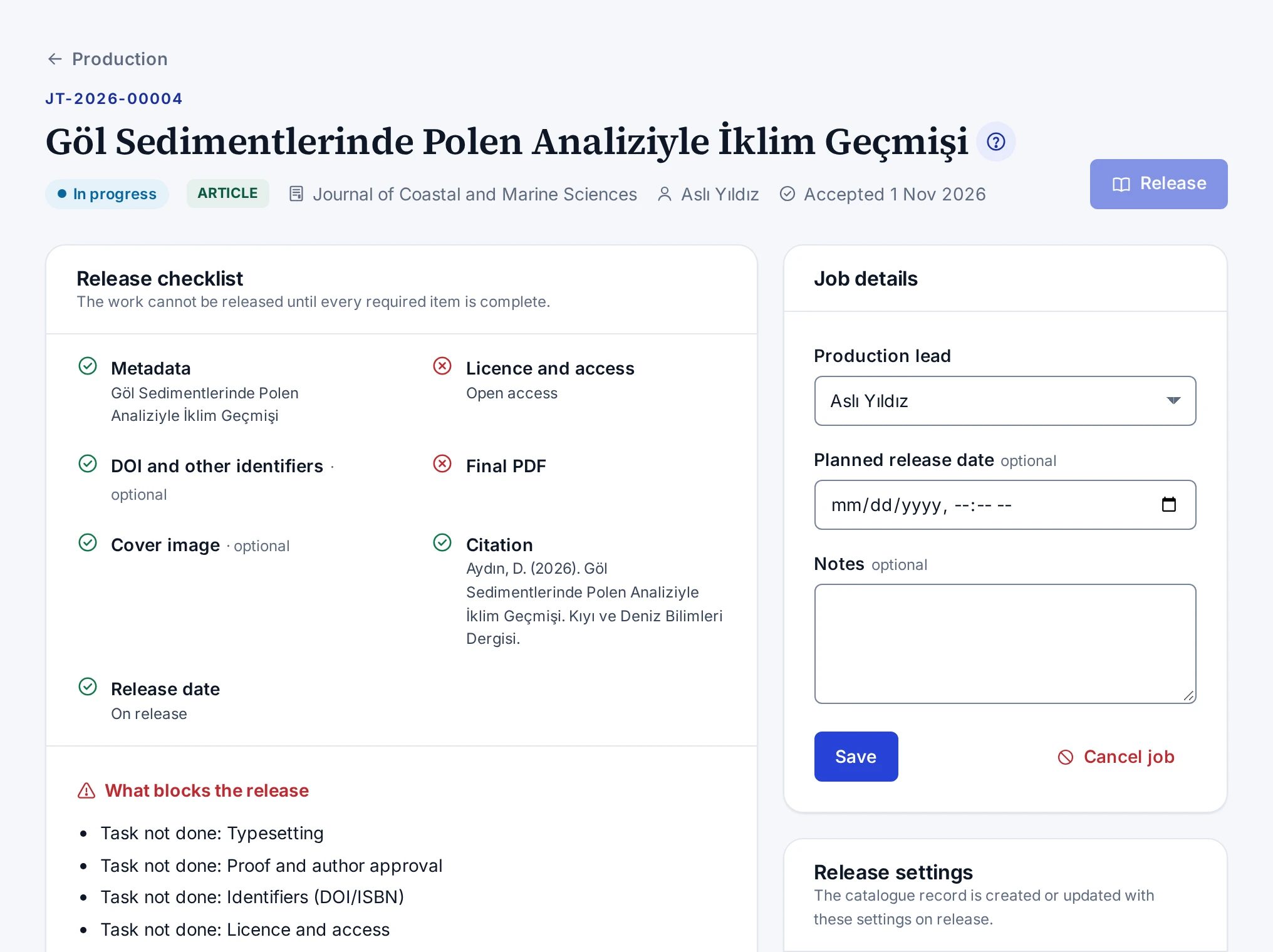
Top buttons
- Open the submission opens the editor page of the submission and appears to people who can see the editor queue.
- Open the catalogue record opens the catalogue record once the job is released.
- Release opens the release dialog. While an item blocks the release, the button cannot be pressed.
Cards
| Card | What it shows |
|---|---|
| Release checklist | The metadata, licence, identifier, final PDF, cover, citation and release date items, and what blocks the release |
| Tasks | The tasks of the checklist with their statuses, assignees and due dates |
| Files and proofs | The versions of the proof, final PDF, EPUB, cover and other files |
| Front matter | The front matter for the first page of the article. Shown for articles only. |
| Comments | The comments of the team and the author |
| Job details | The production lead, planned release date, notes, cancelling and reopening |
| Release settings | The access, licence, identifier, placement and address settings of the catalogue record |
Rules of the screen
- On a released or cancelled job, tasks and settings cannot be changed. Reopen the job to change them.
- You cannot upload files to a cancelled job.
- The assignee of a task can change the status and the note of their own task, even without the production permission.
- While a file is being scanned for viruses, the page refreshes itself every few seconds.
The steps are in Planning a Job, Managing Tasks, Uploading Files and Sharing Proofs, Filling in the Release Settings and Releasing a Work.
Concept
Job Statuses
The Open, In progress, Ready to release, Released and Cancelled statuses of a production job, and how the status follows the checklist.
You do not choose the status of a job by hand. The status changes automatically with the tasks on the checklist. Only releasing, cancelling and reopening change the status directly. This way each column on the board shows where a job really stands.
| Status | When |
|---|---|
| Open | The job is open and no task has started |
| In progress | A task has started or is done. Uploading a file to the job also moves it to this status. |
| Ready to release | All required tasks are done |
| Released | The work has been released to the catalogue |
| Cancelled | The job was cancelled with a reason |
Overdue jobs
A job counts as overdue while a task past its due date is still open. Done and skipped tasks do not count. A job that is not released by its planned release date counts as overdue too. Overdue jobs are marked on the board and listed by the Overdue filter.
Who changes a job
The Production coordinator changes all settings of a job and releases the work. Editors and the Unit manager can only view the job. The assignee of a task can change the status and the note of their own task.
The release steps are in Releasing a Work, and cancelling and reopening in Cancelling and Reopening a Job.
Troubleshooting
The Open job button is missing on the board
Causes when the Open job button does not appear on the production board, or the dialog lists no accepted submission.
Jobs open automatically with the editor's acceptance decision. The Open job button is only for jobs that did not open automatically, and it appears to people with the permission to manage production. The Production coordinator and System administrator roles have this permission.
You do not have the permission
Editors and the Unit manager can only view the board. If an accepted work has no job on the board, tell a person with the Production coordinator role or your system administrator.
The dialog lists no submission
The dialog lists only accepted submissions in your scope that have no job. If there is none, the dialog says No accepted submissions found. A submission whose job was cancelled does not appear either, because the submission has a job. Find the cancelled job with the Show cancelled jobs button on the board and reopen it.
Troubleshooting
The Release button is disabled or missing
Causes and fixes when you cannot press the Release button of a production job, or the button does not appear at all.
The Release button depends on the status of the job, its checklist and your permissions. Check the causes below in order.
An item blocks the release
If the button is disabled, look at the What blocks the release list on the Release checklist card and complete each item. The details are in Releasing a Work.
The job is released or cancelled
On a released or cancelled job, the button is hidden. Reopen the job to make a correction.
You do not have the permission
Releasing needs a separate permission (Release accepted works to the catalogue). Editors and the Unit manager can only view the job.
The check passes but the release fails
The Check button also tries the catalogue rules and lists any problems on the card. If an error comes up in the release dialog, the dialog lists the blockers one by one.
Feature
ISBN and Legal Deposit
Preparing an ISBN request, getting the publishing board's approval, recording the application to the Ministry and following the legal deposit.
ISBNs are issued by the Yayın Standartları ve Derleme Bilgi Sistemi (the publication standards and legal deposit information system) of the Ministry of Culture and Tourism. The person authorised for your institution in the Ministry's system applies there with their own e-Devlet (Türkiye's e-government gateway) login. JournTech never sends an application on your behalf. It collects the details of the application, has the publishing board approve them, and records the Ministry steps and the number that comes back.
Requests run on the Editorial → ISBN & legal deposit screen. The Production coordinator prepares the request and the Publishing board approves it. The Ministry's form is filled in by hand from the copy sheet on the request page, or with the browser extension your institution has installed.
Once the number has been assigned, the barcode for the cover and the copyright page are prepared. When the print date is entered, the 15-day legal deposit period starts and JournTech follows the legal deposit steps. Reminders go out for upcoming and overdue tasks. The whole process is described in ISBN Process.
Screens and settings
ISBN & Legal Deposit Screen
The status filters, search, columns, upcoming obligations card and yearly report card of the screen that lists ISBN requests.
The Editorial → ISBN & legal deposit screen tracks ISBN requests, the publishing board's approval, the steps at the Ministry of Culture and Tourism, printings and legal deposit (derleme) in one place.
Status filters
The buttons above the list filter the requests by status and show the number of requests in each status. You can select several statuses at once.
| Status | Meaning |
|---|---|
| Draft | The data for the Ministry form is being filled in |
| Awaiting approval | The request is waiting for the publishing board's approval |
| Ready to apply | The approved request is waiting to be entered in the Ministry's system |
| Sent to the Ministry | The application is made and the number is awaited |
| ISBN assigned | The number is entered and the book is not printed yet |
| Printed | The print date is entered and the legal deposit period is running |
| Deposit complete | The legal deposit steps of every printing are complete |
| Cancelled | The request was cancelled |
Search and filters
- The Search box searches titles, application numbers and ISBNs. For an ISBN, type at least 4 digits.
- The Form list filters requests by the forms Print, PDF, EPUB and Other.
- The Year of request field filters by the year in which the request was opened.
The filters stay in the address bar.
Columns
| Column | Shows |
|---|---|
| Title | The title. Set and volume requests are marked. |
| Form | Print, PDF, EPUB or other |
| Edition | The edition number |
| Status | The status of the request |
| ISBN | The assigned number |
| Planned date | The planned print or publication date |
| Updated | The time of the last change |
Side cards
The Upcoming and overdue obligations card lists approvals, Ministry steps, print dates, and bandrol (banderole) and legal deposit deadlines by due date. Overdue items are at the top, and each row opens its request. The Yearly report (Excel) card downloads the workbook for the selected year.
New request
The New ISBN request button is shown to the people who handle ISBN requests. The steps are in Preparing an ISBN Request.
Screens and settings
ISBN Request Page
The status line, warnings, action buttons and the form, copy sheet, printings, barcode, copyright page and history cards on the page of an ISBN request.
The header of the request page shows the title, the status, the form and edition, the assigned ISBN and the application number at the Ministry of Culture and Tourism. The line below the header gives the next step and who takes it. On a request linked to a catalogue record, the Catalogue record button opens the record.
Warnings
The warnings at the top of the page show these situations.
- The publishing board sent the request back, or the Ministry returned the application, with a reason.
- The request was cancelled.
- No publisher certificate is entered, or it has expired.
- No Ministry officers are listed.
- The ISBN range message has not been fetched yet.
- The ISBN range message has not been refreshed for more than three weeks and does not know the number of the request.
Action buttons
Which buttons appear depends on the status of the request and on your permissions.
| Button | Request status | Who uses it |
|---|---|---|
| Send for approval | Draft | Production coordinator |
| Approve, Send back | Awaiting approval | Publishing board |
| Back to draft | Awaiting approval, Ready to apply | Production coordinator |
| Sent to the Ministry, Fill with the extension | Ready to apply | Ministry officer |
| Enter the ISBN, Ministry returned it | Sent to the Ministry | Ministry officer |
| Add volume | Set request | Production coordinator |
| Cancel request | Before a print date is entered | Production coordinator |
| Delete | Draft | Production coordinator |
If a button you expect is missing, the reason is shown below the buttons. For example, if you prepared the request, it says that another member of the publishing board has to approve it.
Cards
| Card | What it shows |
|---|---|
| Data for the Ministry form | The data the Ministry form asks for. The card can be edited only while the request is a draft. |
| Copy sheet for the Ministry form | The fields of the Ministry form in the form's order, each with a copy button |
| Printings and legal deposit | The date, bandrol (banderole) and legal deposit steps of each printing. The card appears once the ISBN is assigned. |
| Barcode and copyright page | The EAN-13 barcode and the copyright page. The card appears once the ISBN is assigned. |
| History | Every action on the request, who took it and when |
| Request details | Who prepared the request, sent it for approval and approved it, the board decision, who sent it to the Ministry, the application number and who entered the ISBN |
| Volumes | The volumes of a set, or the set of a volume |
For an electronic publication, the printings card is called Publication and EYDeS. The order of the cards depends on the status of the request. For example, on a request that is ready to apply, the copy sheet moves above the form.
The whole process is described in ISBN Process.
How-to
Downloading the Barcode and Copyright Page
Downloading the cover barcode of a book with an ISBN as SVG or PDF, and copying the text of the copyright page or getting it as a PDF.
Once a request has its ISBN, the Barcode and copyright page card prepares the EAN-13 barcode for the cover and the book's copyright page (künye).
Barcode
- On the request's Barcode and copyright page card, press Download SVG or Download PDF.
- Give the file to the cover designer.
The barcode is at its nominal size and takes up about 37 × 32 mm. Do not shrink it.
Copyright page
- Check the text in the Copyright page section of the card.
- Copy the text with Copy the copyright page, or download the copyright page as a PDF with the Download PDF button next to it.
The copyright page contains the following.
- The title and subtitle, the authors and the contributors
- The publisher's name and publisher certificate number
- The date and number of the publishing board's decision
- The ISBN and the numbers of the other forms of the same edition
- The edition and printing details, the printer and the printer's certificate number
- The place and year of publication
- The licence statement for an openly licensed book, and the copyright line for other books
The publisher's details come from Site settings, and the edition, printing and printer details from the request.
Hyphenation
The hyphens in the number are placed according to the range message of the International ISBN Agency. If the range message has not been fetched yet, the barcode and the copyright page show the 13 digits of the number without hyphens, and the card says so in a warning. The same happens when the message has not been refreshed for more than three weeks and does not know the number. This way a number split in the wrong places is never printed. Before sending the book to print, wait for the range message to be fetched or refreshed, or set the hyphens by hand as the screen of the Ministry of Culture and Tourism shows them.
How-to
Downloading the Yearly ISBN Report
Downloading the ISBN requests, numbers, Ministry dates and the legal deposit steps of each printing for a chosen year as an Excel workbook.
The yearly report gives the ISBN requests and legal deposit (derleme) steps of a year in one Excel workbook.
- On the Yearly report (Excel) card at the side of the Editorial → ISBN & legal deposit screen, select the year in the Year list.
- Press the download button of the card. The label of the button includes the year you selected.
The report contains the requests that were not cancelled. A request is in the report when it was opened or given a number in the selected year, or when one of its printings was printed in that year. Each printing is a separate row and appears in the report of the year it was printed. A reprint of a book whose request was opened in an earlier year is therefore in the report of the year of the reprint. A printing without a print date appears in the report of the year the request was opened or given its number. A request with no printing in the year is a single row, with the printing columns empty. The columns are as follows.
| Column | Content |
|---|---|
| ISBN, Eser adı, Biçim, Baskı, Durum | The details of the request (title, form, edition, status) |
| Başvuru no, Başvuru tarihi, ISBN tarihi | The steps at the Ministry of Culture and Tourism (application number, application date, ISBN date) |
| Basım no, Basım tarihi, Bandrol | The details of the printing (printing number, print date, bandrol) |
| Derleme gönderildi, EYDeS, Ajans nüshası, Derleme tamam | The dates of the legal deposit steps (copies sent, EYDeS, agency copy, deposit complete) |
Cells whose value starts with =, +, - or @ are written as text and do not work as formulas in Excel.
Concept
ISBN Process
The statuses an ISBN request goes through from draft to legal deposit, who takes each step, and the part JournTech plays in the Ministry application.
ISBNs are assigned by the Yayın Standartları ve Derleme Bilgi Sistemi (the publication standards and legal deposit information system, ekygm.gov.tr) of the Ministry of Culture and Tourism. The Ministry offers no public service that other systems can connect to. So the person authorised for your institution in the Ministry's system applies with their own e-Devlet login (Türkiye's e-government gateway). JournTech collects the data for the application and has the request approved. It records the Ministry steps and the number that comes back, tracks the printing and the legal deposit (derleme), and sends reminders before deadlines pass. JournTech never sends an application on your behalf.
The path of a request
| Status | What happens | Who does it |
|---|---|---|
| Draft | The data for the Ministry form is filled in. | Production coordinator |
| Awaiting approval | The request goes to the publishing board. | The Publishing board approves it or sends it back with a reason. |
| Ready to apply | The approved request is entered in the Ministry's system. | Ministry officer |
| Sent to the Ministry | The application number is recorded. The Ministry usually assigns the number the same day. | Ministry officer |
| ISBN assigned | The number is checked and written to the catalogue record. The barcode and the copyright page are ready. | Ministry officer |
| Printed | Entering the print date starts the 15-day legal deposit period. | Production coordinator |
| Deposit complete | All legal deposit steps are ticked. | Production coordinator |
| Cancelled | The request, or a number that will not be used, is cancelled. | Production coordinator |
If the publishing board sends the request back or the Ministry returns the application, the request returns to draft with the reason and goes for approval again. When the print date of a reprint with the same ISBN is entered, the request becomes Printed again, and it is complete again once the legal deposit of that printing is done.
Ministry officer
A Ministry officer is a person who acts for the institution in the Ministry's system. If officers are listed in the site settings, only they record the Ministry steps. If the list is empty, the Production coordinator who handles ISBN requests records these steps too. The list is described in Entering the Publisher Settings.
Approval and the four-eyes principle
The Ministry application is made in the institution's name, and the number it brings is written to the catalogue record. That is why the person who prepared a request does not approve it, and another member of the publishing board gives the approval. The rule is described in Four-Eyes Principle.
Legal deposit
Within 15 days of printing, six copies of a printed book with bandrols (the banderole stickers issued by the Ministry) are delivered to the deposit office, and its electronic copy is uploaded to EYDeS, the electronic legal deposit system. For e-books, legal deposit is through EYDeS only. The steps are in Tracking Legal Deposit.
Feature
Reports
Following publication, submission and process indicators and downloading reports as CSV files.
Reports are on the Administration → Reports screen. The screen shows the submission flow, publications, access counts, searches on the public site and in the help, and overdue work on separate tabs.
Personal data is masked in downloaded CSV files. Downloading without masking requires a separate permission, which only the System administrator role has. Every download is written to the audit log.
Screens and settings
Reports Screen
The indicators and filters on the submission flow, publications, access, search, help and overdue tabs, and the CSV downloads with masked personal data.
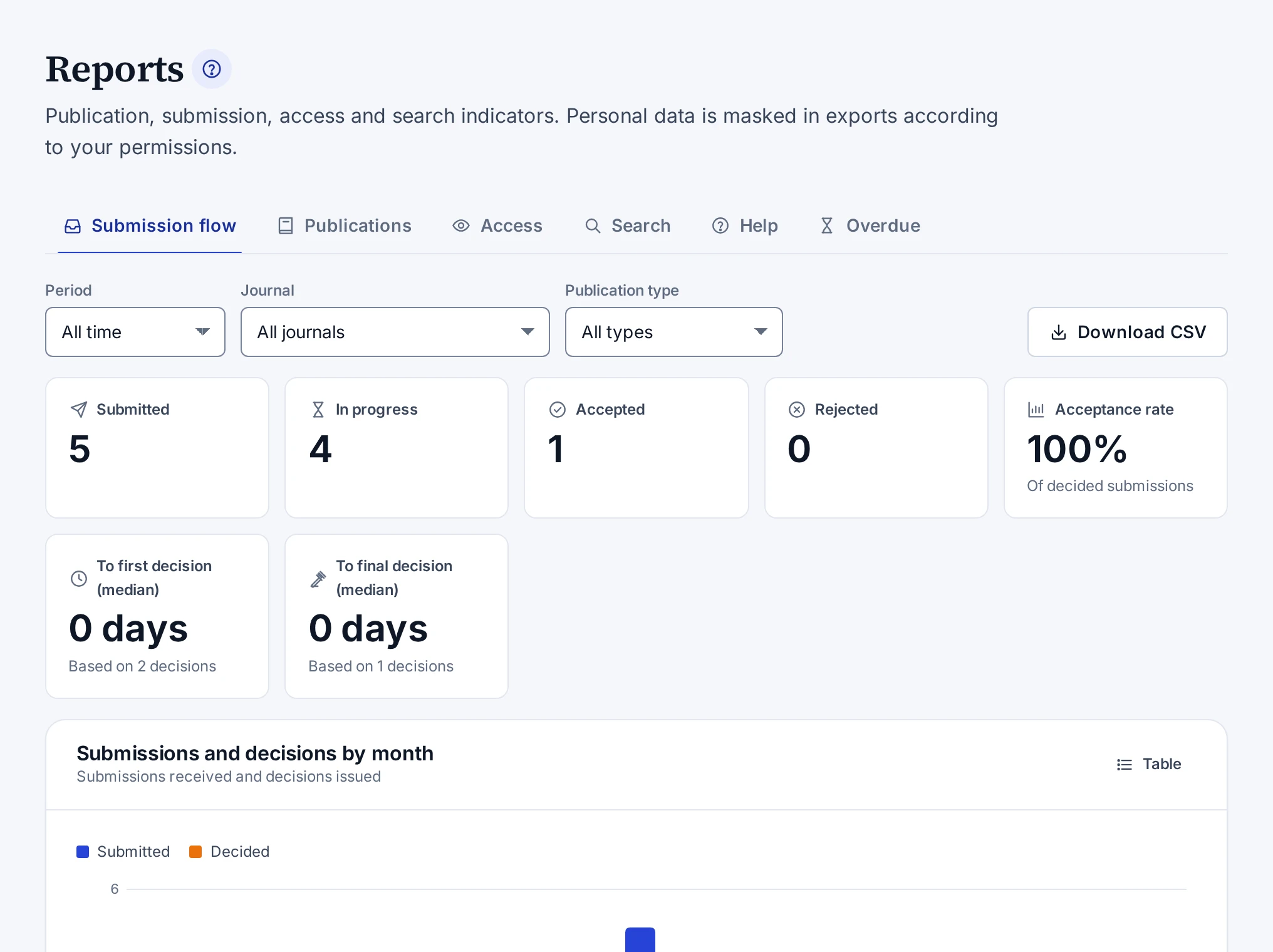
The Administration → Reports screen shows publication, submission, access and search indicators on tabs. The screen is open to people whose report permission covers the whole platform. An Editor-in-chief whose role was granted for a single journal does not see this screen.
Tabs
| Tab | What it shows |
|---|---|
| Submission flow | Submitted, in-progress, accepted and rejected submissions, the acceptance rate, the median time to the first and to the final decision, and the breakdown by month, status, type and journal |
| Publications | Published works, works without a category, and the breakdown by type, access status, publication year, language and category |
| Access | View and download counts, a daily series and the most accessed publications |
| Search | The number of searches on the public site, searches without results and the most frequent searches |
| Help | Searches made in the help centre, words without results, the readers' answers and notes on topics, and topics that are due for review |
| Overdue | Overdue reviewer invitations, review reports and revisions, stalled submissions and late production tasks |
The acceptance rate is calculated from the submissions that received a decision. Access counts leave out bots, and IP addresses are not stored. Searches and help queries are counted without keeping user or IP details. The panel's global search does not count as a help search. The Table button of some charts shows the same data as a table.
The Stalled submissions list shows submissions that are submitted, in screening or have a submitted revision and have not been acted on for more than 14 days. Submissions you are an author of do not appear on the Overdue tab.
Filters
| Filter | Tabs where it appears |
|---|---|
| Period | Submission flow, Access, Search and Help |
| Publication year range | Publications |
| Journal | Submission flow and Overdue |
| Publication type | Submission flow, Publications and Access |
The Period list has the options All time, Last 30 days, Last 90 days, This year and Custom range. The filters stay in the address bar.
CSV download
| Tab | Button |
|---|---|
| Submission flow | Download CSV |
| Overdue | Overdue items (CSV) |
| Publications | Download CSV and People (CSV) |
| Access | Download CSV |
The downloaded file follows the filters on the screen. The Unit manager and System administrator roles can download reports. Personal data in the files is masked. Only the System administrator role has the permission to download unmasked data. The Personal data is masked note under the button shows that the file will be masked. Names and e-mail addresses on the Overdue tab are masked on the screen by the same rule.
Every download is written to the audit log. An attempt to open a report without permission is written to the audit log too.