

Getting started Changed in this version
Using the Help Pages
Opening the help pages from the panel and the public site, searching them and filtering them by your role.
The help pages are part of JournTech and describe the features of the installed version. You reach them in three ways.
Help in the panel
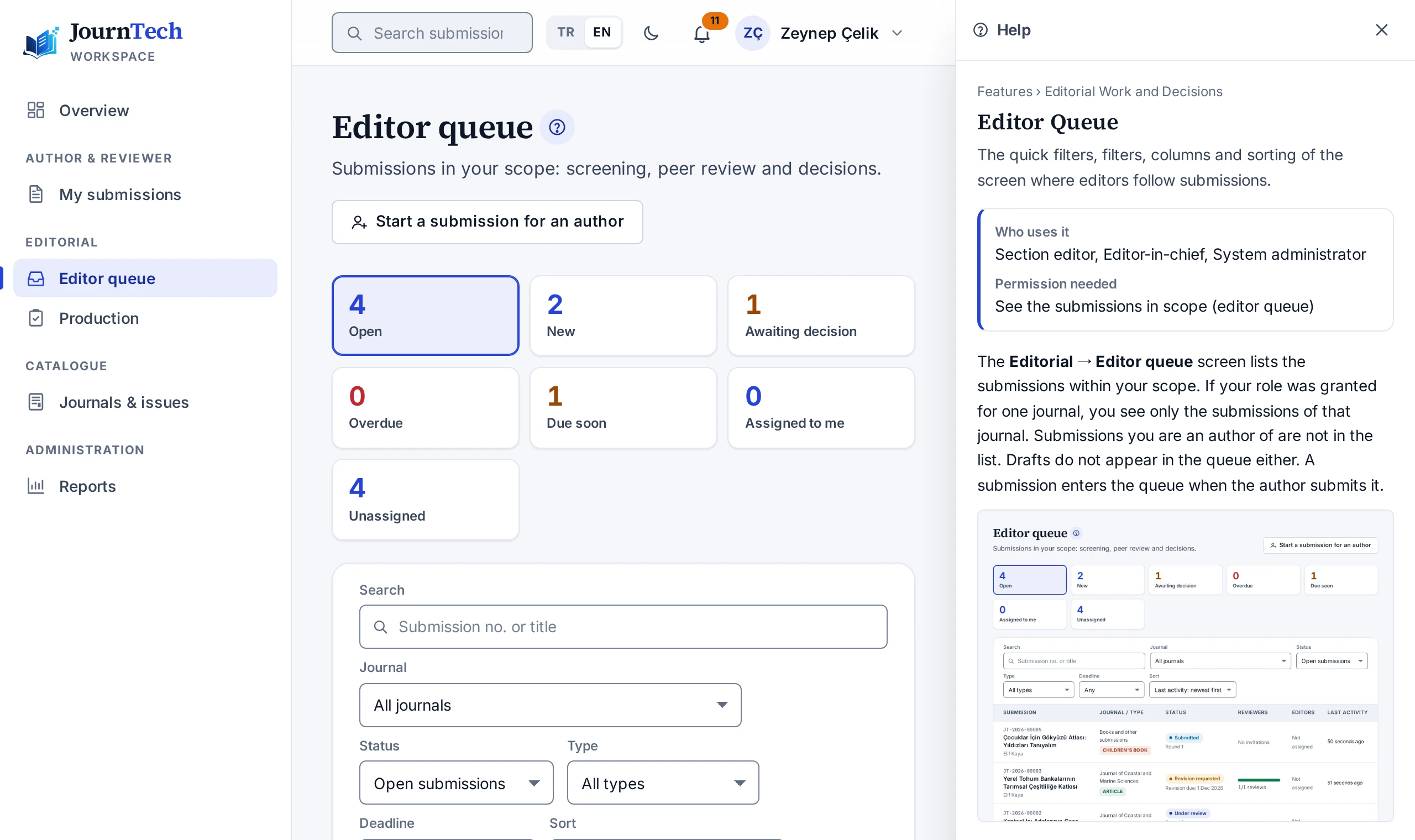
The help button next to the title of a panel screen shows that screen's help page in a side panel that opens on the right. When you are not in a text field, the ? key opens the same panel. To turn this shortcut off, switch off The ? key opens the help at the foot of the panel. The choice is kept in this browser.
While the side panel is open, you can keep using the screen, and a half-finished form is not lost. A topic link in the panel opens another topic in the same panel, and the arrow at the top left returns to the previous topic. The Open as a full page link opens the topic as a full page in a new tab. The Esc key closes the panel.
Help centre
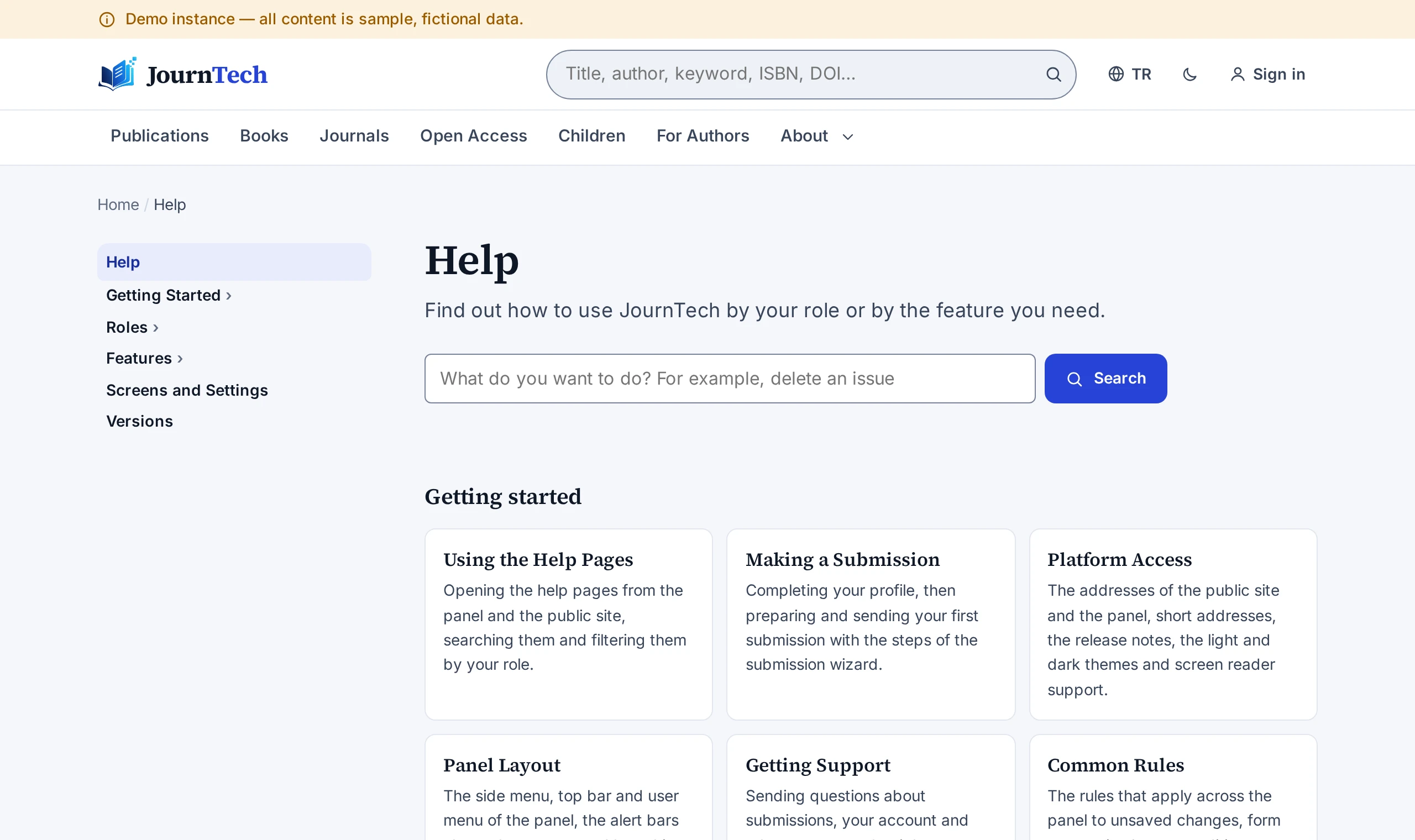
The Help link in the user menu and the Help link in the footer of the public site open the help centre. In the help centre you find topics by your role, by feature or in the tree on the left.
Searching the help
The help centre's search box ignores Turkish characters and upper and lower case, and the beginning of a word is enough. For example, typing "delete issue" finds the topic "Deleting a Journal Issue". You can narrow the results by role, feature and topic type. The search box in the panel's top bar also shows help topics under a separate heading. This box appears for all roles other than Registered researcher and Reviewer and is described in Panel Search.
The help pages do not appear in search engines. The system administrator can open the help to signed-in users only. In that case a visitor who opens a help page is taken to the sign-in page and returns to the same page after signing in.