

JournTech
Reviewer Guide
This guide was made from the help pages on 9 November 2026. The help centre has the latest version.
Help Press Ctrl+P to print it or save it as a PDF.
Role
Reviewer
The role of the people in the reviewer pool. You review the submissions you are invited to.
This role adds you to the reviewer pool, so that the editors' reviewer search can suggest you. Because access follows the invitation, every user who receives an invitation can review without this role.
In the panel you see the Author & reviewer → Reviewing screen. The steps for your invitation and your report are on the Reviewing page.
Feature
Reviewing
Answering a reviewer invitation, opening the anonymous files, filling in the review form and sending your report.
When you are invited to review a submission, the invitation arrives by e-mail and as a notification in the panel. You follow your invitations and reviews on the Author & reviewer → Reviewing screen. This section appears if you have the reviewer role or have received at least one invitation.
You do not need the Reviewer role to review. Every invited user can accept the invitation and review. The reviewer role and the reviewer pool option in the profile let the editors' reviewer search suggest you.
When you accept the invitation with a conflict of interest declaration, you get access to the submission's anonymous files only. You write your report with the review form and send it. A sent report cannot be changed. Your later remarks go to the editors as a separate note. For your first invitation, start with Responding to a Review Invitation.
How-to
Responding to a Review Invitation
Opening a review invitation, accepting it with a conflict-of-interest declaration, or declining it with an optional reason.
When an editor invites you, you get an e-mail and a notification in the panel. Accepting or declining the invitation is always up to you. You do not need the reviewer role to review. Every invited user can review.
Opening the invitation
You open the invitation in one of two ways:
- Open the link in the invitation e-mail.
- On the Author & reviewer → Reviewing screen, open the Invitations tab and press View invitation in the row of the invitation.
Invited for the first time
If you have no JournTech account, the editor's invitation creates an account for you. The first link in the e-mail lets you set your password. The link works only once and is valid for the number of days given in the e-mail.
- Open the first link in the e-mail.
- Type your password in the New password and Password (again) fields.
- Press Set password and continue.
- Sign in and open the invitation with the second link in the e-mail.
If ORCID sign-in is turned on for the installation, you can also set up your account without a password with the Accept with ORCID button on the same page. On an installation where e-mail sending is turned off, a system administrator passes these links on to you.
Invitation page
The invitation page shows the title, abstract and keywords of the work. If the editor added a message, it appears on the Message from the editor card. The Deadlines card shows Respond to the invitation, Submit the review, Round and Invited by.
The note at the top of the page says which anonymity rule applies. In single-anonymous and open review, the authors are also listed with their institutions. The rules are in Peer Review Types.
Accepting the invitation
- Read the Conflict-of-interest declaration text.
- If you have no conflict of interest, tick the box under the declaration.
- Press Accept and start reviewing.
The anonymous files and the review form open on the same page. The editors get a notification too.
A possible conflict of interest
If you have a possible conflict, do not tick the box. Explain the situation in the Possible conflict of interest field and press Accept and start reviewing. Your explanation goes to the editor, and the editor decides whether you continue as a reviewer. If you tick the box afterwards, the explanation field closes and the text you wrote in it is not sent.
Declining the invitation
- Optionally, fill in the Reason (optional) field. You can also suggest a suitable reviewer in this field.
- Press Decline invitation and confirm.
The editors get a notification. You cannot open the files of a work you declined.
Response period
When the response period of an invitation ends, the invitation closes automatically and can no longer be accepted. The invitation page then reads The response time for this invitation has passed. Deadlines and reminders are described in Reviewer Deadlines and Reminders.
How-to
Opening the Anonymous Files
Opening and downloading the files of a review you accepted, stripped of author details, and knowing when your access ends.
When you accept an invitation, the Anonymous files card opens on the invitation page. The card holds files stripped of author details that only reviewers can see.
- On the Author & reviewer → Reviewing screen, open the Reviews in progress tab.
- In the row of the review, press Start review or Continue review.
- On the Anonymous files card, open a file in the browser with the Open button or download it with the download icon.
The card lists the current files uploaded up to that round, with their round numbers. Author details in the file properties are removed during the upload. Use the files only for this review and do not share them with anyone.
In revision rounds, a card titled The author’s response to the reviewers shows the author's response to the reviewers. If the author uploaded a response file, the file is among the anonymous files.
When access ends
- You can open the files only after you accept the invitation and only while the review round is open.
- Your access ends when the editor makes a decision and closes the round. The card then says that the round is closed.
- Your access also ends when the editor closes your invitation. If you have not submitted your review yet, you get a notification.
If you received an invitation for a new round, you see the current files on the page of the new invitation.
How-to
Writing a Review
Scoring the criteria in the review form, choosing your recommendation, writing comments to the author and the editor, adding an attachment and submitting the review.
You write your review in the Review form section of the invitation page. The form is saved as a draft while you write. The review deadline appears at the top of the form.
Parts of the form
- In the Criteria section, give each criterion a score between 1 (poor) and the highest score of the criterion (very good).
- In the Your recommendation section, select Accept, Minor revision, Major revision or Reject.
- In the Comments to the author field, write the assessment to be passed on to the author. The field is required and needs at least 20 characters.
- Optionally, fill in the Confidential comments to the editor field.
- If you wish, upload a file with your notes in the Attachment (optional) section.
The journal sets the criteria. If the journal has not defined any, originality, methodology, clarity of presentation, use of the literature and contribution to the field are each scored out of 5.
If the editor sees fit, the author sees your comments to the author. In double-anonymous and single-anonymous review your name is not shown to the author, so do not write anything that would reveal your identity. Confidential comments to the editor are never shown to the author. Write your ethical concerns, any suspicion of plagiarism or the reasons for your recommendation in this field.
The attachment can be a PDF, DOCX or ODT file. Your name in the file properties is removed during the upload. If the editor sees fit, the attachment is shared with the author. A new file replaces the previous one.
Draft
The form saves itself while you write, and the note at the top of the form shows the save status. You can also save manually with the Save draft button.
If saving fails because of the connection or the server, the note says "Could not save — will retry". The panel tries again after a few seconds and waits a little longer before each new attempt. What you type while an attachment uploads is saved after the upload. If you move to another screen while a change is not saved, the panel saves it first and asks before leaving only if it cannot. The browser also warns when you close the tab.
Reviewer list permission
At the bottom of the form there is a permission box for the yearly reviewer acknowledgement list of the journal. The box is optional and starts unticked. If you tick it and the journal publishes the list, your name and institution appear under that year in the Our reviewers list on the journal page. The list does not say which article you reviewed.
Submitting the review
- Press Submit review.
- In the confirmation dialog, press the same button again.
If something is missing, the form lists what you need to complete before submitting. Pressing an item in the list takes you to that field. All criterion scores, your recommendation and the comments to the author are required. The virus scan of the attachment must also have finished.
A submitted review is locked and cannot be changed. You get a thank-you e-mail and the editors get a notification. You read your review with the View report button on the Completed tab of the Reviewing screen. To send a correction later, see Sending a Note to the Editors.
If the editor closes the round with a decision before you submit, the form can no longer be edited and a note says so.
How-to
Sending a Note to the Editors
Sending the editors a separate note to add a correction or an explanation to a review you have already submitted.
A submitted review does not change. You send a correction or explanation you want to add later to the editors as a separate note. The author does not see this note.
- On the Author & reviewer → Reviewing screen, open the Completed tab.
- In the row of the review, press View report.
- On the Note to the editors card under the review, write your note in the Your note field. The note must be at least 5 characters long.
- Press Send note.
The note is saved separately from the review, and the editors of the submission get a notification. The editors see the note as an internal note on the Messages tab of the submission. The notes you sent are listed with their dates on the same card.
The card appears only after the review has been submitted. While the review is a draft, you make the correction directly in the form.
How-to
Joining the Reviewer Pool
Joining the reviewer pool from your profile and setting the expertise keywords that editors use to find you.
Users in the reviewer pool are suggested when editors search for reviewers. Every registered user can join the pool from their profile. Accepting invitations is always up to you.
- Open the My profile page from the user menu and go to the Profile tab.
- On the Reviewer pool card, tick the I would like to join the reviewer pool box.
- Type your areas of expertise in the Expertise keywords field. Type each one and press Enter. You can enter up to 30 keywords.
- Press Save.
Being found in the pool
When editors look for a reviewer, they search by name, e-mail, institution or expertise. The candidates are ranked by the number of their expertise keywords that match the keywords of the submission. The editor also sees the number of ongoing, completed and declined invitations of each candidate.
To appear in the pool, your account must be active and your e-mail address verified. The authors of a submission do not appear in the candidate list of that submission.
Reviewer role
The Reviewer role adds you to the pool even without ticking this box. Reviewers who were invited by e-mail address and whose account was created with the invitation start with this role. If you do not have the reviewer role, a note reminding you to join the pool and a Go to my profile link appear at the bottom of the Reviewing screen.
Screens and settings
Reviewing Screen
The tabs and rows of the screen where reviewers follow their invitations, their reviews in progress and the reviews they completed.
The Author & reviewer → Reviewing screen lists the invitations you received and your reviews. This section appears in the menu if you have the reviewer role or have received at least one invitation.
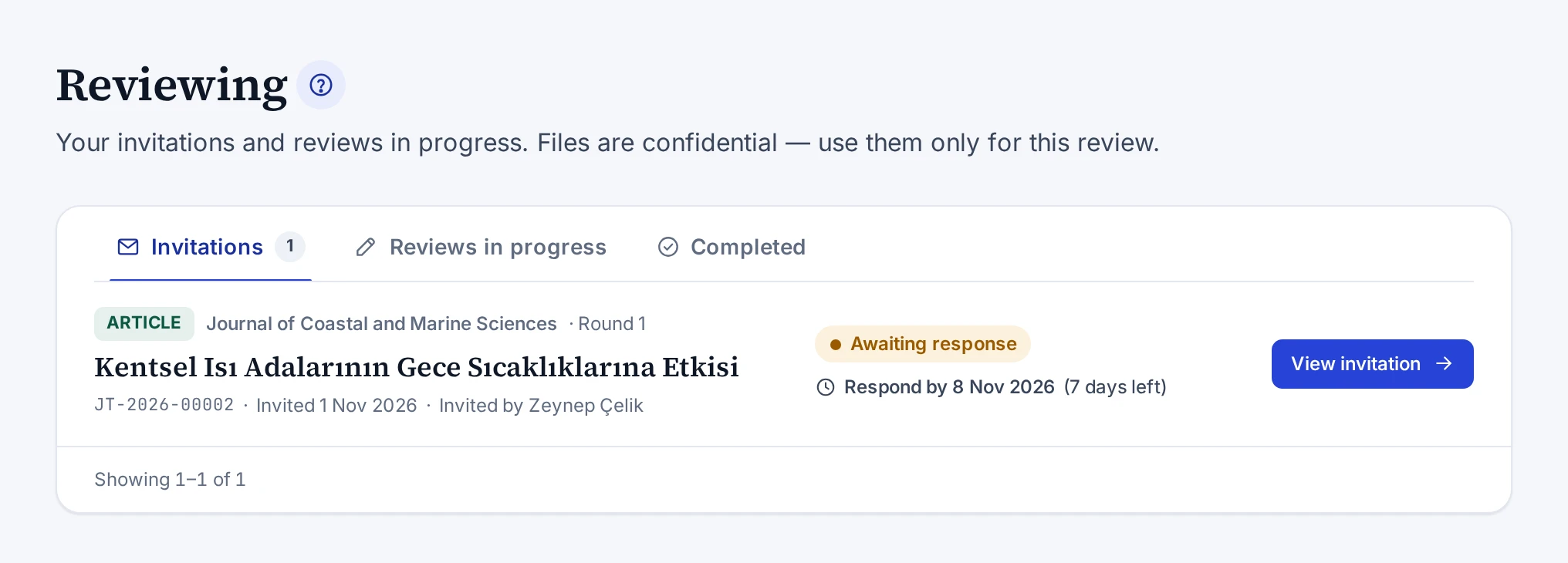
Tabs
| Tab | What it shows |
|---|---|
| Invitations | Invitations awaiting your response. The number on the tab is the number of pending invitations |
| Reviews in progress | Reviews you accepted and have not submitted yet. The number on the tab is their count |
| Completed | Reviews you have submitted |
The reviews are sorted by review deadline. If you have no pending invitation and a review in progress, the screen opens on the Reviews in progress tab. Invitations you declined, expired invitations and invitations the editor closed are not listed.
Rows
Each row shows the publication type, the journal or publisher, the round and the title of the work. The submission number appears under the title. Invitations show the invitation date and the editor who sent the invitation. Completed reviews show the date the review was submitted.
On the right of the row are the status label and the next deadline. An invitation shows the last day to respond. A review you accepted shows the last day for the review. Next to the date is the number of days left or overdue. Dates with three days or less left and past dates are highlighted in colour.
| Button | When it appears |
|---|---|
| View invitation | For an invitation awaiting your response |
| Start review | For a review you accepted but have not started in the form |
| Continue review | For a review saved as a draft |
| View report | For a submitted review |
Empty list
If you have no pending invitations, the tab says so. If you do not have the reviewer role, a note reminding you to join the reviewer pool and a Go to my profile link appear at the bottom of the screen. Joining the pool is described in Joining the Reviewer Pool.
The screen that opens when you open an invitation is described in Review Invitation Screen.
Screens and settings
Review Invitation Screen
The header and cards of the screen where an invitation and its review open, and its views for pending, accepted and closed invitations.
This screen opens when you open an invitation from the link in the e-mail or from the Reviewing screen. The screen shows one of three views, depending on the status of the invitation.
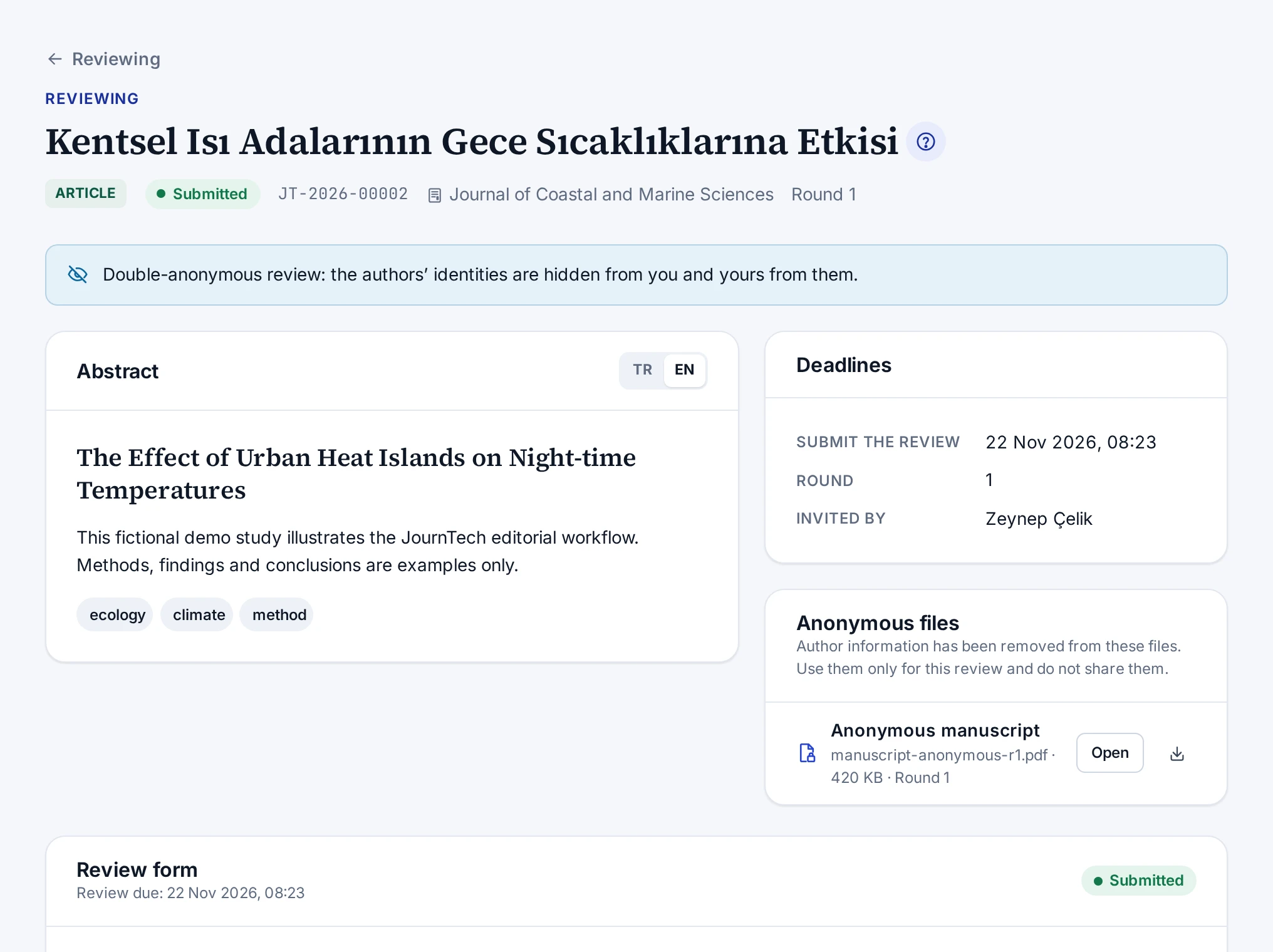
Header
The header is the title of the work. While the invitation awaits your response, Review invitation appears above the title. After you accept, this text becomes Reviewing. Under the title you see the publication type, the status, the submission number, the journal and the round. If the deadline has passed, the Overdue label appears.
The note under the title states the anonymity rule that applies. The rules are in Peer Review Types.
Invitation awaiting a response
| Card | Contents |
|---|---|
| Abstract | Title, abstract and keywords. Language buttons if the work is in two languages. In single-anonymous and open review, the authors and their institutions |
| Message from the editor | The message the editor added to the invitation. The card does not appear if the editor added no message |
| Deadlines | Respond to the invitation, Submit the review, Round and Invited by |
| Conflict-of-interest declaration | The declaration text and its version, the tick box, the Possible conflict of interest field and the Accept and start reviewing button. Below them, the Reason (optional) field and the Decline invitation button |
Accepted invitation
| Card | Contents |
|---|---|
| Abstract | The abstract card of the invitation |
| The author’s response to the reviewers | The author's response to the reviewers in a revision round |
| Deadlines | Submit the review, the round and the inviting editor |
| Anonymous files | Files stripped of author details, with the Open and download buttons |
| Review form | Criterion scores, recommendation, comments, reviewer list permission, attachment, and the Save draft and Submit review buttons |
| Note to the editors | Additional notes sent to the editors after the review was submitted |
Closed invitation
For an invitation you declined, an expired invitation or an invitation the editor closed, the screen shows only a note.
| Status | Note |
|---|---|
| Declined | You declined this invitation |
| Expired | The response time for this invitation has passed |
| Cancelled | The editor closed this invitation |
In this case you cannot open the files of the work.
Related topics
Concept
Peer Review Types
What authors and reviewers see of each other in double-anonymous, single-anonymous and open review, and when the type is set.
The peer review type decides whether the author and the reviewer see each other's identity. The type is chosen in the Peer review field of the journal profile. Submissions not tied to a journal are reviewed double-anonymously.
| Type | What the reviewer sees | What the author sees |
|---|---|---|
| Double-anonymous | The identity of the authors is not shown | The identity of the reviewer is not shown |
| Single-anonymous | The authors and their institutions | The identity of the reviewer is not shown |
| Open review | The authors and their institutions | The name of the reviewer of a shared review |
Rules for every type
- Reviewers see only the anonymous files. The title page, the cover letter and the declaration documents are open only to editors.
- Editors always see the authors and the reviewers.
- The author sees only the comments-to-the-author section and the attachment of the reviews the editor shares.
- Confidential comments to the editor are never shown to the author.
- The invitation e-mail contains only the submission number and the journal name.
When the type is set
The peer review type of each submission is recorded when the author first submits it. If the journal changes the type later, the change applies only to new submissions. The editor sees the type of the submission in the header of the submission screen. The reviewer sees it in the note at the top of the invitation page.
The steps for changing the type are in Editing the Journal Profile.
Concept
Reviewer Deadlines and Reminders
The response and review periods of reviewer invitations, when reminders go out and how unanswered invitations close.
Each invitation has two deadlines. The reviewer responds to the invitation by the response deadline. If they accept, they submit the review by the review deadline. The exact dates are in the invitation and on the Deadlines card of the invitation page.
Default periods
If the editor does not set periods in the invitation, the periods from the site settings apply. By default these are 7 days for the response and 21 days for the review. A system administrator changes them on the Workflow tab of the Administration → Site settings screen.
In an invitation, the response period can be between 1 and 60 days and the review period between 1 and 180 days. Both periods count from the moment the invitation is sent. The review deadline cannot be earlier than the response deadline.
Reminders
- A reviewer who has not responded to the invitation yet is reminded once before the response deadline.
- For an accepted invitation, a reminder goes out before the review deadline.
- If the review is late, the reminders continue at the same interval. At most five review reminders are sent for one invitation.
- A site setting decides how many days before the deadline the reminder goes out. By default this is 3 days.
- Reminders go out only while the review round is open.
The editor sees the number of reminders sent in the row of the invitation.
Unanswered invitations
An invitation that is not answered by the response deadline closes automatically, and its status changes to Expired. The reviewer and the editors of the submission get a notification. An expired invitation can no longer be accepted. The editor can invite the same reviewer again.
Changing the deadlines
Only the editor changes the deadlines. The change is written to the audit log and the reminder counter is reset. The panel has no button for the reviewer to ask for more time. For more time, the reviewer contacts the inviting editor directly.
The editor's steps are in Tracking Invitations and Reviews. For a reviewer who cannot meet the deadline, see I cannot meet the deadline.
Troubleshooting
I got the invitation e-mail but cannot see it in the panel
Causes and fixes when the e-mail of a review invitation arrived but the invitation does not appear in the panel.
An invitation appears in the panel only in the account it was sent to. Check the causes below in order.
You signed in with another account
Sign in with the e-mail address the invitation was sent to. If you have more than one account, the invitation is only in the account of this address.
The invitation expired or was closed
The Invitations tab lists only invitations awaiting your response. An invitation that expired or that the editor closed is not in the list. When you open the link in the e-mail, the invitation page shows its status.
You already responded to the invitation
An invitation you accepted is on the Reviews in progress tab. A review you have submitted stays on the Completed tab. Invitations you declined do not appear in the lists.
Your e-mail address is not verified
The reviewing screens require a verified e-mail address. If a new account was created with the invitation, the link for setting a password also verifies your address. If you have not used this link yet, open it first. The steps are in Responding to a Review Invitation.
Troubleshooting
I cannot meet the deadline
Asking the editor for more time, or stepping down, when the time given to respond to an invitation or to write the review is not enough.
The panel has no button for asking for more time and no field for a reviewer to message the editor. Contact the editor named in the Invited by row of the Deadlines card on the invitation page directly. The editor can extend your deadlines in the panel.
When the editor extends the period, the new date appears on the same card and the reminders follow the new date.
If you cannot do the review
If you have not responded to the invitation yet, you can decline it with the Decline invitation button. If you have accepted the invitation, tell the editor. The editor closes your invitation.
Deadlines and reminders are described in detail in Reviewer Deadlines and Reminders.
Troubleshooting
I want to add something to a submitted review
Adding a correction or an explanation later to a review that has been submitted and locked.
A submitted review is locked and cannot be changed. Send the information you want to add from the Note to the editors card under the review. The note is saved separately from the review and goes only to the editors. The author does not see this note.
The steps are in Sending a Note to the Editors.
Troubleshooting
I can no longer open the files
Why the anonymous files of a work you reviewed no longer open, and where the files are in a new round.
The files can be opened only while the review round is open. If the Anonymous files card shows a note saying that the round is closed, the editor has closed the round with a decision.
Your invitation was closed
If the editor closed your invitation, the invitation page reads The editor closed this invitation and your access to the files ends. You get a notification when an invitation is closed before you submit your review.
A new round has started
If you received an invitation for a new round after a revision, you see the current files on the page of the new invitation. The page of the previous round no longer shows the files.
Troubleshooting
I was asked to review again after a revision
The invitation of the new round, its files and your earlier review when you are asked to review the revision of the same work.
After the author submits a revision, the editor can open a new review round. A separate invitation is sent for each round. You therefore receive a new invitation for the new round.
- On the Author & reviewer → Reviewing screen, open the Invitations tab.
- In the row of the new invitation, press View invitation.
- Confirm the conflict-of-interest declaration and accept the invitation.
After you accept, a card titled The author’s response to the reviewers shows the author's response to the reviewers. The Anonymous files card shows the current anonymous files. Your review from the previous round stays on the Completed tab.
Concept
Separation of Duties
An editor who reviewed a submission cannot decide on it, authors take no role on their own submissions, and only the editor-in-chief makes final decisions.
Separation of duties means that one person does not take two roles on the same submission. A person who reviews a work does not decide on it. An author is not an editor or a reviewer on their own submission either. JournTech applies these rules automatically.
Editors who review
If you accepted a reviewer invitation for a submission, you cannot make the final decision on that submission. The rule applies even if you have an editor role, and it covers every round of the submission. A warning appears on the submission screen and the decision buttons are hidden. You cannot be assigned to such a submission as an editor either. Another editor-in-chief makes the decision.
Your own submissions
Submissions you are an author of do not appear in your queue and do not open. The system recognises you as an author if you own the submission or if your e-mail address or ORCID iD is in the author list. The authors of a submission cannot be assigned to it as reviewers or editors. You cannot invite yourself as a reviewer either.
Permission to make final decisions
Only an Editor-in-chief makes final decisions. A Section editor saves a decision recommendation, and the recommendation does not change the status of the submission. A System administrator can open every screen but cannot make final decisions. An administrator who needs to make decisions is also given the editor-in-chief role.
Whether reviewers and authors see each other's identity is explained in Peer Review Types.