

JournTech
Auditor Guide
This guide was made from the help pages on 9 November 2026. The help centre has the latest version.
Help Press Ctrl+P to print it or save it as a PDF.
Role
Auditor
Sees the audit log, the reports and the KVKK requests read-only and downloads the audit log as a CSV file.
The auditor does not change any record. The auditor follows the trail of important actions in the audit log and can download the log as a CSV file. The auditor sees personal data requests but cannot settle them.
In the panel you see the Reports, Audit log and Data requests (KVKK) screens.
Permissions of this role
- See the audit log
- Export the audit log as CSV
- See reports and indicators
- See KVKK data-subject requests (read-only)
Feature
Reports
Following publication, submission and process indicators and downloading reports as CSV files.
Reports are on the Administration → Reports screen. The screen shows the submission flow, publications, access counts, searches on the public site and in the help, and overdue work on separate tabs.
Personal data is masked in downloaded CSV files. Downloading without masking requires a separate permission, which only the System administrator role has. Every download is written to the audit log.
Screens and settings
Reports Screen
The indicators and filters on the submission flow, publications, access, search, help and overdue tabs, and the CSV downloads with masked personal data.
The Administration → Reports screen shows publication, submission, access and search indicators on tabs. The screen is open to people whose report permission covers the whole platform. An Editor-in-chief whose role was granted for a single journal does not see this screen.
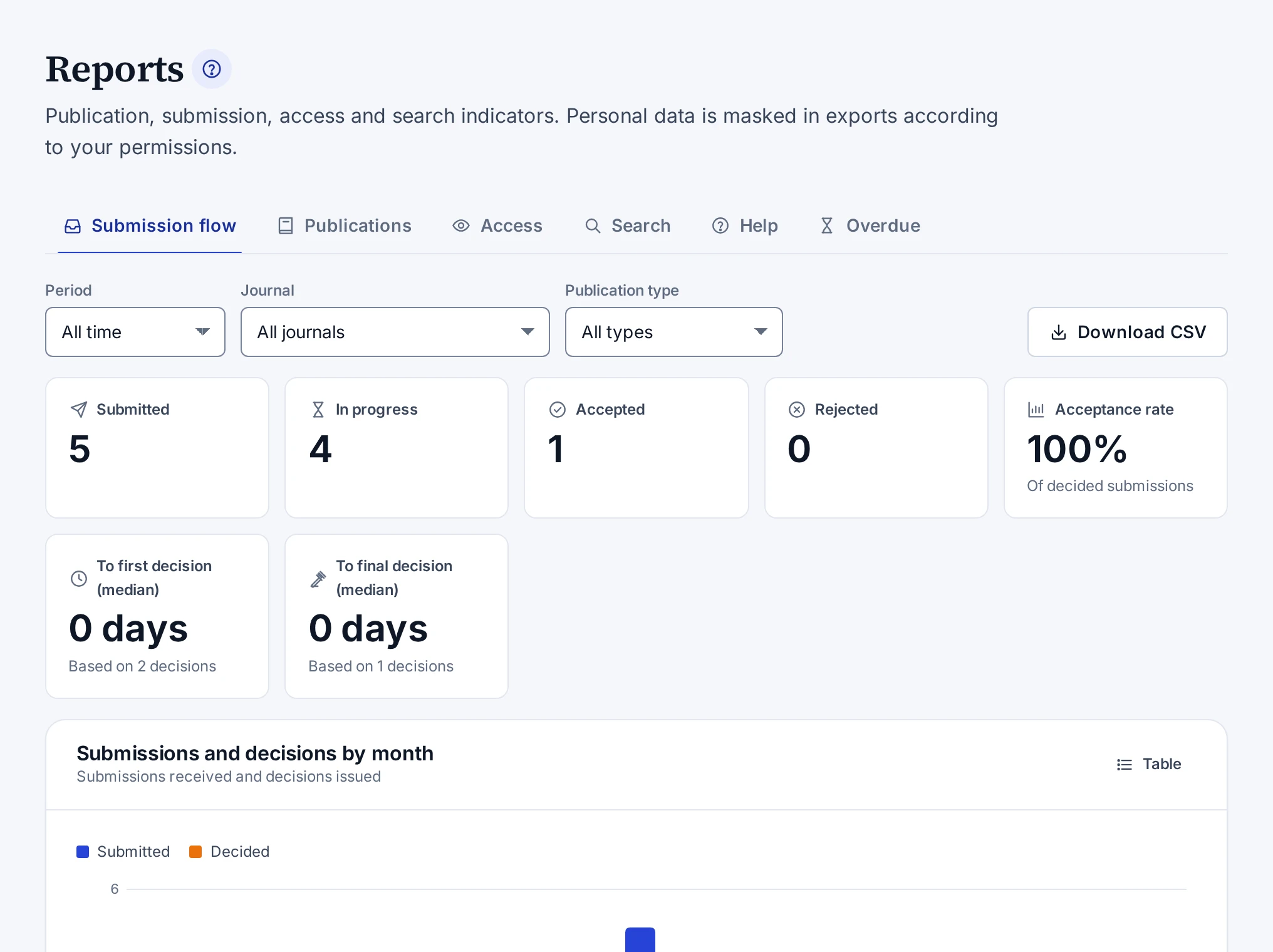
Tabs
| Tab | What it shows |
|---|---|
| Submission flow | Submitted, in-progress, accepted and rejected submissions, the acceptance rate, the median time to the first and to the final decision, and the breakdown by month, status, type and journal |
| Publications | Published works, works without a category, and the breakdown by type, access status, publication year, language and category |
| Access | View and download counts, a daily series and the most accessed publications |
| Search | The number of searches on the public site, searches without results and the most frequent searches |
| Help | Searches made in the help centre, words without results, the readers' answers and notes on topics, and topics that are due for review |
| Overdue | Overdue reviewer invitations, review reports and revisions, stalled submissions and late production tasks |
The acceptance rate is calculated from the submissions that received a decision. Access counts leave out bots, and IP addresses are not stored. Searches and help queries are counted without keeping user or IP details. The panel's global search does not count as a help search. The Table button of some charts shows the same data as a table.
The Stalled submissions list shows submissions that are submitted, in screening or have a submitted revision and have not been acted on for more than 14 days. Submissions you are an author of do not appear on the Overdue tab.
Filters
| Filter | Tabs where it appears |
|---|---|
| Period | Submission flow, Access, Search and Help |
| Publication year range | Publications |
| Journal | Submission flow and Overdue |
| Publication type | Submission flow, Publications and Access |
The Period list has the options All time, Last 30 days, Last 90 days, This year and Custom range. The filters stay in the address bar.
CSV download
| Tab | Button |
|---|---|
| Submission flow | Download CSV |
| Overdue | Overdue items (CSV) |
| Publications | Download CSV and People (CSV) |
| Access | Download CSV |
The downloaded file follows the filters on the screen. The Unit manager and System administrator roles can download reports. Personal data in the files is masked. Only the System administrator role has the permission to download unmasked data. The Personal data is masked note under the button shows that the file will be masked. Names and e-mail addresses on the Overdue tab are masked on the screen by the same rule.
Every download is written to the audit log. An attempt to open a report without permission is written to the audit log too.
Feature
Audit Log and KVKK Requests
Reviewing the audit log of important actions and settling personal data requests.
Actions such as publishing, retracting, role changes and setting changes are written to the audit log on the Audit log screen. The audit log cannot be changed or deleted. The rows that match the screen's filters can be downloaded as a CSV file.
The requests that users open for a copy, a correction or the deletion of their data are settled on the Data requests (KVKK) screen. For a deletion request, the account is anonymised. Audit records, decisions and published authorship details are kept because the law requires them to be retained.
Users with the Auditor role see the audit log and the requests under KVKK (Türkiye's Personal Data Protection Law) read-only.
Screens and settings
Audit Log
The filters, rows and CSV export of the unalterable log that shows who carried out important actions, when and on which record.
The Administration → Audit log screen is the unalterable record of critical changes. Each row shows who carried out an action, when and on which record, and what changed. The entries cannot be changed or deleted in the database either, and the table cannot be emptied in one go. When the application connects to the database with a role that does not own the tables, it cannot switch this protection off itself. The team that runs the installation sets up that connection.
Actions written to the log
Changes to roles, settings, feature flags and templates, exports, anonymisation and viewing the content of an e-mail are written to the audit log. Publishing, retractions, decisions, sign-ins and account changes are recorded here too.
Filters
| Filter | What it does |
|---|---|
| Action (prefix) | Searches by the start of the action code, for example user., role.grant, publication.publish or submission.decision |
| Record type | Filters by record type, for example user or publication |
| Record ID | Shows the rows of a single record |
| User ID | Shows the actions of one user |
| From and To | Limit the rows to a date range |
Pressing the ID in the Record column narrows the list to that record. Pressing the ID in the Actor column narrows it to that user's actions. The Clear filters button removes the filters. The History of this record button on a user page opens this screen with the rows about that account.
Rows
| Column | What it shows |
|---|---|
| When | The time of the action |
| Action | The action code |
| Record | The type and ID of the record |
| Actor | The ID and role of whoever carried out the action, or System for the system's own actions |
The arrow at the end of a row opens the details. The details show the Reason, the Before and After values in the Changes table and the ID of the request that carried out the action.
CSV export
The Export CSV button downloads the rows that match the filters on the screen as a CSV file. The file contains the time, the actor's ID and role, the action, the record type, the record ID and the request ID. The before and after values and the reason are not included. A file contains at most 50,000 rows. Every export is written to the audit log too.
Screens and settings
KVKK Data Requests
The filter, columns, buttons and read-only view of the screen that lists the users' requests about their personal data with their statuses.
The Administration → Data requests (KVKK) screen lists the requests under KVKK (Türkiye's Personal Data Protection Law) that users open on the My profile → Privacy & KVKK tab. The newest request is at the top.
Request types
| Type | What the person asks for |
|---|---|
| A copy of my data | A copy of the personal data in their account |
| Correction of my data | The correction of some of their data |
| Deletion of my account and data | The deletion of their account and data |
A person cannot open a second request of the same type. They wait until the earlier request is resolved.
Statuses
The Status list filters the requests by status.
| Status | Meaning |
|---|---|
| Received | The request is new. |
| In review | The request has been taken into review. |
| Completed | The request was carried out. |
| Rejected | The request was rejected with a reason. |
Columns and buttons
| Column | What it shows |
|---|---|
| Person | The person's e-mail address and note |
| Request | The type of the request |
| Status | The status of the request and the explanation of the outcome |
| Received | When the request arrived |
Pressing the person's address opens the user page. A row has these buttons.
- Details shows the person's note, the explanation of the outcome and who resolved the request and when.
- Download data (JSON) downloads the account's data as a JSON file on copy requests.
- Start review takes a new request into review.
- Resolve opens the window for resolving the request.
The steps for a request are in Resolving a KVKK Data Request.
Read-only view
Someone with the Auditor role can list the requests and examine them with Details. They cannot take a request into review, resolve it, download a data copy or anonymise an account. The note at the top of the screen points this out.